Desktop Client & Outlook Plugin
The LeapFILE Desktop Client and Microsoft Outlook Plugin provide enhanced file transfer capabilities directly from your Windows desktop and email client.
Key Features & Benefits
- Transfer Large Files: Send files of any size (2GB+), bypassing restrictive email attachment limits
- Secure Transfers: All transfers are protected with end-to-end encryption
- Integrated Workflow: Send files directly from your desktop (via right-click) or from within Microsoft Outlook
- Reliability: Pause, resume, and recover file transfers, ensuring large files are sent successfully even with intermittent network connectivity
- Automation: Utilize the command-line interface for scripting and automating recurring transfers
System Requirements
- Operating System: Windows XP or later (Windows 7, 8, 10, 11)
- Prerequisites: .NET Framework 3.5 (includes .NET 2.0 and 3.0)
- Outlook Plugin: Microsoft Outlook 2003 or later (32-bit or 64-bit)
Installation
Before You Begin
Close all Microsoft Office applications (Outlook, Word, Excel, etc.) before starting the installation.
Step 1: Download the Installer
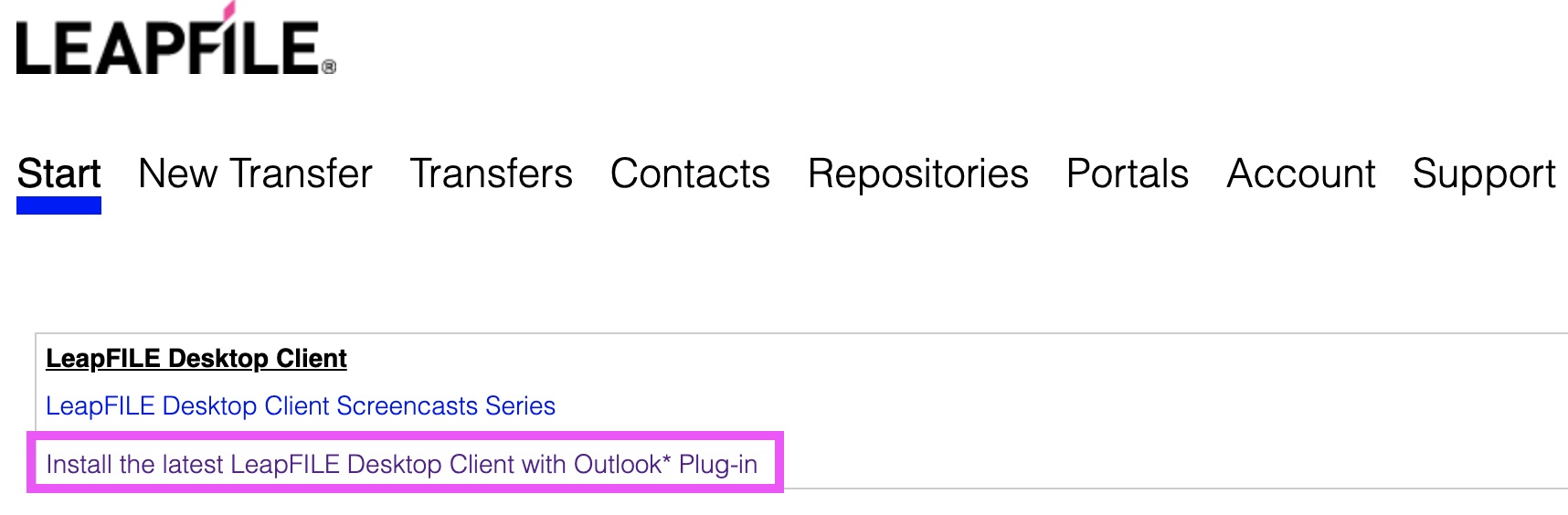
- Log in to your LeapFILE web account
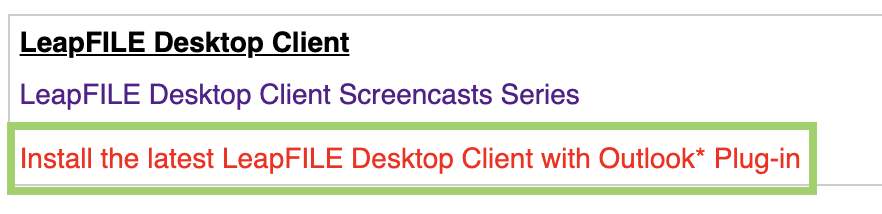
- Click Download the latest LeapFILE Desktop Client with Outlook Plug-in
Step 2: Run the Installer
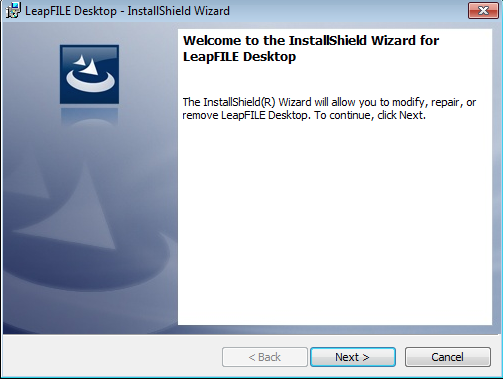
- Run the downloaded installer
- Follow the installation prompts
- After installation, the client will prompt you to log in
Step 3: Log In to LeapFILE
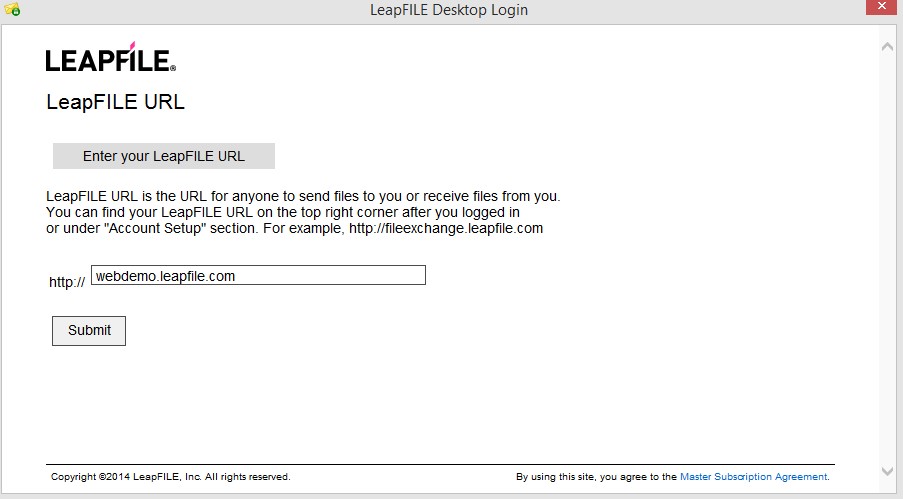
- Enter your LeapFILE URL (e.g.,
yourcompany.leapfile.net) - do not includehttp://orwww - Enter your email address and password
- Click Login
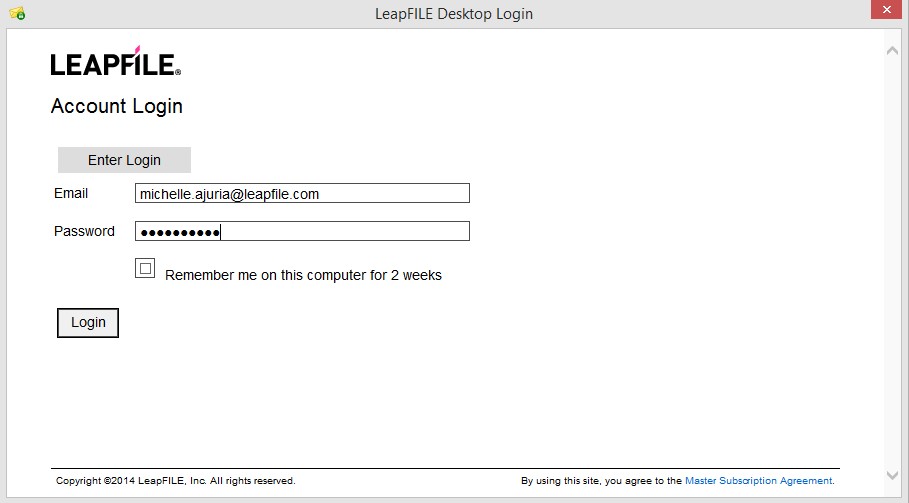
Once logged in, the desktop client will run in your system tray. You can now close the login window and proceed to install the Outlook plugin if needed.
Step 4: Install Outlook Plugin (64-bit)
If you're using 64-bit Microsoft Outlook (Office 2019, 2016, or Office 365), you need to install an additional plugin:
- After the desktop client installation completes, install the 64-bit Office Plugin
- The installer will guide you through this process
- Launch Outlook once complete
Determining Your Outlook Version
To check if you're using 32-bit or 64-bit Outlook:
- Open Outlook
- Go to File → Office Account → About Outlook
- Look for "32-bit" or "64-bit" at the top of the About window
32-bit Outlook: The desktop client installer includes the plugin - no additional installation needed.
64-bit Outlook: Install the separate 64-bit plugin after the desktop client installation.
.NET Framework Requirement
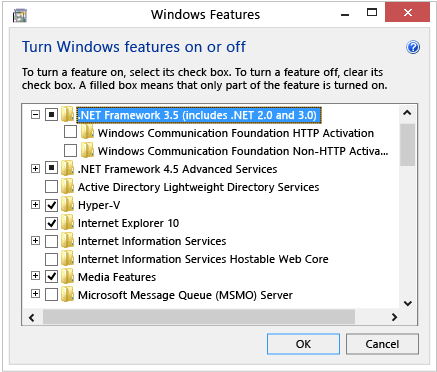
If the installation fails and mentions ".NET Framework," you need to enable it in Windows:
- Press the Windows key, type Windows Features, and press Enter
- Check the box for .NET Framework 3.5 (includes .NET 2.0 and 3.0)
- Click OK and reboot if prompted
Note
An internet connection is required to download and install .NET Framework components.
Using the Desktop Client
After installation, the LeapFILE Desktop Client runs in your system tray (the icon area by your clock).
System Tray Menu
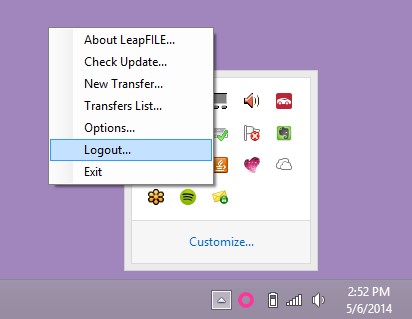
Right-click the LeapFILE icon in your system tray to access:
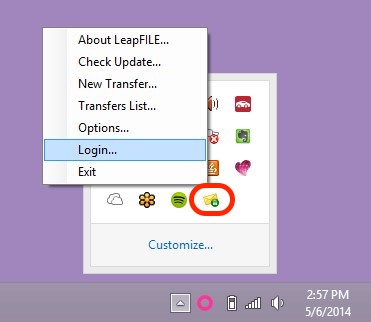
- New Transfer: Send files directly from your desktop
- Transfers List: View the status of all recent transfers
- Options: Configure client settings
- Check Update: Check for software updates
- Logout/Login: Change accounts or re-authenticate
- Exit: Close the application completely
Sending Files from Desktop
To send files directly from your desktop:
- Right-click the LeapFILE system tray icon
- Select New Transfer
- Add recipients, subject, and message
- Select files to send
- Click Send
You can also drag and drop files into the transfer window.
Viewing Transfer Status
To check if a transfer succeeded or failed:
- Right-click the LeapFILE system tray icon
- Select Transfers List
- View the status of all recent transfers
Tip
Always check the Transfers List after sending to verify successful completion.
Desktop Client Options
Access advanced settings by right-clicking the system tray icon and selecting Options:
General Tab
- Manage automatic software updates
- Configure startup behavior
Transfer Tab
- Adjust upload acceleration settings
- Set default security options
- Configure default expiration periods
Connection Tab
- Configure proxy settings if you're behind a corporate firewall
- Set connection timeout values
Using the Outlook Plugin
Once installed, the LeapFILE plugin integrates directly into Microsoft Outlook.
Sending Files via Outlook
When composing a new email with attachments:
- Add recipients to the To field (do not use CC or BCC)
- Attach files as you normally would
- Click the Send via LeapFILE button instead of the normal Send button
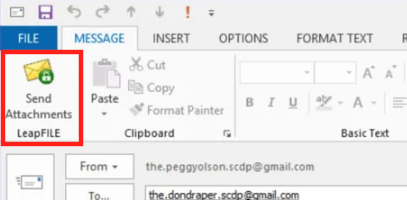
Recipient Placement
Be sure all recipients are in the To field. LeapFILE will automatically BCC all recipients for security and privacy.
Configuring the Outlook Plugin
Click the LF Options button in the Outlook ribbon to configure behavior:
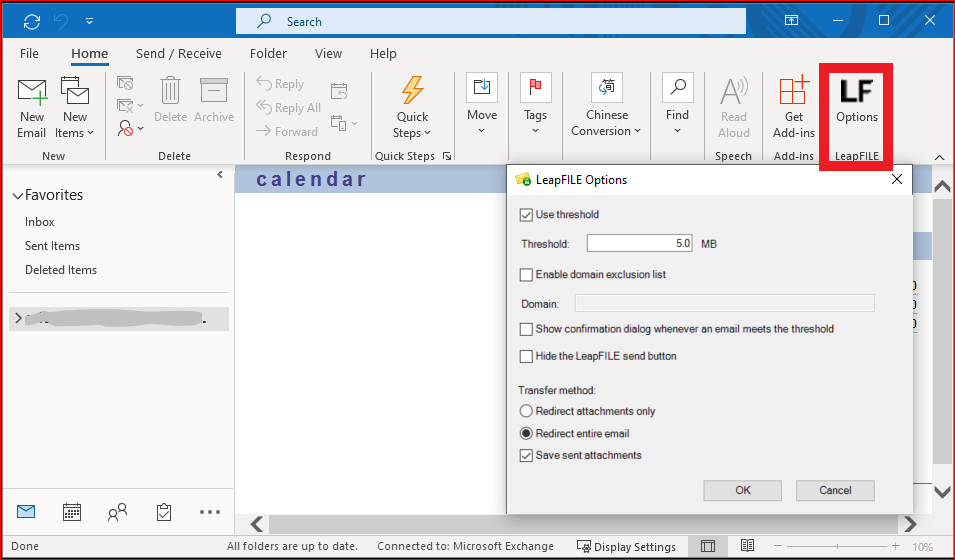
Use Threshold
Automatically send attachments via LeapFILE if they exceed a certain size:
- Default: 5 MB
- Customize: Increase or decrease the threshold
- Disable: Uncheck the box to make all LeapFILE transfers manual
Enable Domain Exclusion List
Specify email domains to which you never want to send files via LeapFILE (e.g., internal company domains).
Redirect Entire Email
By default, only attachments are sent via LeapFILE. Check this option to send the entire email body and attachments through LeapFILE for maximum security.
Adding a LeapFILE Link to Your Email Signature
Make it easy for contacts to send you files by adding a link to your email signature:
- In Outlook, go to File → Options → Mail → Signatures
- Select the signature you want to edit
- Type the text for your link (e.g., "Click here to send me files securely")
- Select the text and click the Hyperlink button
- In the address field, enter your LeapFILE URL (e.g.,
https://yourcompany.leapfile.net) - Click OK to save
Organizing LeapFILE Notifications in Outlook
Create a dedicated folder for LeapFILE email notifications to keep your inbox organized:
- Create a new folder in Outlook (e.g., "LeapFILE Notifications")
- Open any email from
no_reply@leapfile.com - Go to Message → Rules → Create Rule
- Check the From [sender] checkbox
- Check Move the item to folder
- Select your LeapFILE folder
- Click OK
All future LeapFILE notifications will automatically move to this folder.
Troubleshooting
Repair Utility
For most issues, the quickest solution is to run the LeapFILE Repair Utility:
- Close all Office applications
- Download the utility: LF_Repair_Utility_v2.exe
- Right-click the downloaded file and select Run as administrator
The utility automatically detects and fixes common desktop and Outlook problems.
Common Errors
Error: Invalid Login / Invalid APIKey
Cause: This usually happens after you've changed your LeapFILE password.
Solution:
- Right-click the LeapFILE icon in the system tray and select Logout
- Right-click the icon again and select Login
- Enter your new password
Error: Authentication Option is Currently Disabled
Cause: Your account administrator has disabled a specific security option.
Solution:
- Right-click the LeapFILE icon and choose Exit
- Relaunch the application from the Start Menu to sync the latest settings
- Alternatively, contact your administrator to re-enable the option under Account → Account Setup → Receiver Authentication Option
Error: Unable to Connect / "Establishing Authentication Session"
Cause: A firewall, proxy, anti-virus, or web filter is blocking the client.
Solution: Contact your IT department and ask them to whitelist:
- Executables:
LeapFileDesktopClient.exeandLeapFileComhub.exe - Port: 443 (HTTPS)
- Domains:
api.leapfile.net,fileexchange.leapfile.net,*.leapfile.com,*.leapfile.net - IPs:
54.227.253.124and174.129.208.74
You can test connectivity by visiting: - https://api.leapfile.net/services/rest - https://fileexchange.leapfile.net/services/rest
A blank page indicates successful connection.
Error: Waiting for LeapFILE ComHub to Start Timed Out
Cause: The LeapFILE service is stopped or blocked by another application.
Solution:
- Check your antivirus settings - ensure
LeapFileComHub.exeandLeapFileDesktopClient.exeare not blocked - Open services.msc (press Windows+R, type
services.msc, press Enter) - Find LeapFILE ComHub Service
- Set Startup type to Automatic
- Configure Recovery options to restart the service on failure
- Reboot your computer
If the issue persists, uninstall completely (including registry keys) and reinstall.
Outlook Plugin Missing or Disabled
If the LeapFILE button doesn't appear in Outlook:
- Go to File → Options → Add-ins
- At the bottom, select COM Add-ins from the dropdown and click Go
- Check the LeapFILE Add-in box
- Click OK and restart Outlook

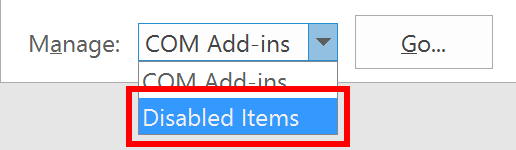
If the add-in appears in Disabled Items:
- Select Disabled Items from the dropdown and click Go
- Select the LeapFILE Add-in and click Enable
- Restart Outlook
Error: Redemption.dll Not Registered (64-bit Plugin)
Cause: Outlook launched before the 64-bit plugin installation completed.
Solution:
- Close all Office applications
- Uninstall both LeapFILE Desktop and x64 add-in from Apps and Features
- Delete installation folders:
C:\Program Files (x86)\LeapFILEC:\Program Files\LeapFILE- Delete the Add-in Express folder from Documents
- Delete
C:\Users\<username>\AppData\Roaming\LeapFILE - Delete registry keys (use caution):
HKEY_CURRENT_USER\Software\LeapFILEHKEY_LOCAL_MACHINE\Software\LeapFILEHKEY_LOCAL_MACHINE\Software\WOW6432node\LeapFILE- Repair Microsoft Office using the official tool: aka.ms/diag_officeuninstall
- Reinstall LeapFILE Desktop Client
- Immediately install the 64-bit add-in
- Launch Outlook
Finding Log Files
If support asks for log files, you can find them here:
- LFComHub.txt:
C:\Program Files (x86)\LeapFILE\LeapFILE Desktop\Log\ - LFDesktopClientLog.txt:
C:\Users\<username>\AppData\Roaming\LeapFILE\Log\


Viewing Hidden Files
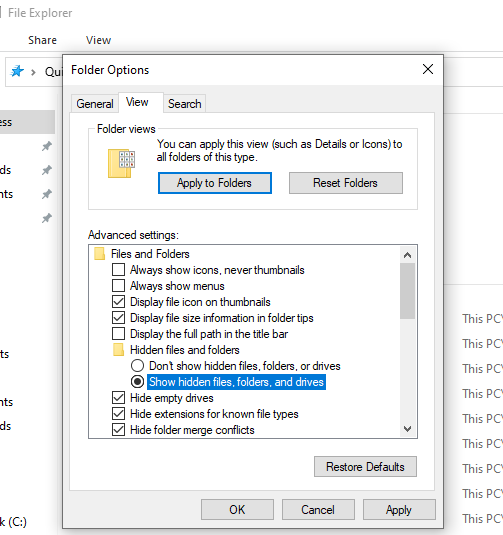
The AppData folder is hidden by default. To view it:
- Open File Explorer
- Go to View → Options → Change folder and search options
- Click the View tab
- Select Show hidden files, folders, and drives
- Click OK
Send these files to support@leapfile.com when requested.
Uninstalling the Desktop Client
To completely remove the LeapFILE Desktop Client:
- Close all Office applications
- Go to Control Panel → Programs and Features (or Settings → Apps)
- Uninstall LeapFILE Desktop Client
- Delete the LeapFILE folder from
C:\Program Files (x86)\ - Delete the Add-in Express folder from Documents
- Delete
C:\Users\<username>\AppData\Roaming\LeapFILE - Delete registry keys (optional but recommended):
HKEY_CURRENT_USER\Software\LeapFILEHKEY_LOCAL_MACHINE\Software\LeapFILEHKEY_LOCAL_MACHINE\Software\WOW6432node\LeapFILE
Registry Editing
Exercise caution when editing the Windows registry. Incorrect changes can cause system issues. See Microsoft's registry editing guide for more information.
Advanced Features
Command-Line Automation
For IT administrators and advanced users, you can automate file transfers using the command-line interface.
Prerequisites: LeapFILE Desktop Client must be installed and you must be logged in.
Basic Usage:
cd "C:\Program Files (x86)\LeapFILE\LeapFILE Desktop"
LeapFILECmd.exe -t"recipient@example.com" -s"Subject" -m"Message" -f"C:\path\to\file.pdf"
Parameters:
- -t: Recipients (comma-separated)
- -s: Subject
- -m: Message
- -f: File paths (comma-separated)
PowerShell Example:
cd "C:\Program Files (x86)\LeapFILE\LeapFILE Desktop"

$RecipientList = "user1@example.com,user2@example.com"
$Subject = "Automated Report"
$MessageBody = "Here is the daily report."
$Attachment = "C:\reports\daily_report.pdf"

./LeapFILECmd.exe -t"$RecipientList" -s"$Subject" -m"$MessageBody" -f"$Attachment"
You can schedule this script as a Windows Task for full automation.
Video Tutorials
Watch video guides for the desktop client and Outlook plugin:
Next Steps
- Learn about Portals & Repositories for permanent file storage
- Explore Administrative Features if you're an account administrator
- Check the FAQ and Troubleshooting guides for more help