Frequently Asked Questions
Find answers to common questions about using Leapfile.
Account & Login
How do I reset my password?
If you've forgotten your password, you can reset it yourself:
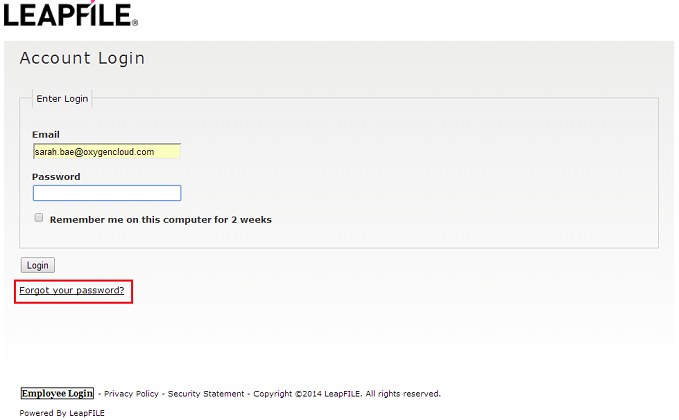
- Go to your company's Leapfile URL and click Employee Login
- Click the Forgot your password? link
- Enter your email address - a verification code will be sent to you
- Do not close the web page - check your email for the code
- Copy and paste the verification code into the page
- Set a new password
If self-service reset fails, contact your Leapfile account administrator to reset your password.
Desktop Client Users
After resetting your password, you must log out of the Leapfile Desktop Client and log back in with your new password:
- Right-click the Leapfile icon in the system tray
- Select Logout
- Right-click again and select Login
- Enter your new password
What if there's no "Forgot your password?" link?
If the login page has no Forgot your password? link — or the reset page says "Password reset is not enabled. Please contact your administrator." — your account administrator has turned off self-service password resets for the account. In that case only an administrator can reset your password, from Account Settings → Users → Accounts. They generate a temporary password that is emailed to you, and you choose a new one at your next login. (Administrators: this toggle is Account Settings → Security → Password → "Allow users to reset their password" — see Self-Service Password Reset.)
Does Leapfile enforce strong passwords?
Yes. Each account's administrator sets the password policy. New accounts default to modern NIST 800-63B-4 guidance: a minimum length (15 characters by default, configurable from 8 to 128), a check that blocks passwords found in known data breaches, and no forced character classes or periodic expiration. Administrators can also require specific character types, block password reuse, or turn on expiration if they choose. Whitespace is allowed, so passphrases work well. See Password Policies.
Does Leapfile support two-factor authentication (2FA/MFA)?
Yes. In the product it's called Sign-In Verification — app-based TOTP codes from an authenticator app (Google Authenticator, Authy, Microsoft Authenticator, 1Password, etc.). You can enable it for yourself from your profile, and a full account administrator can require it for everyone via Account Settings → Security → Sign-In. It applies to interactive sign-ins (web, and SSO logins routed through Leapfile) and the desktop client — not the legacy signed REST API. When you enable it you also get 8 single-use recovery codes — save them; if you lose your phone and your codes, an administrator can reset your two-factor setup. See Sign-In Verification.
Does Leapfile support single sign-on (SSO)?
Yes. Leapfile supports OpenID Connect SSO with Azure AD / Microsoft Entra ID, Google Workspace, Okta, or any OpenID Connect provider. Once an administrator sets it up at Account Settings → Security → SSO, your users sign in with their existing company credentials — Leapfile never sees their passwords, and MFA and conditional-access policies are enforced by your identity provider. With automatic provisioning, a user's Leapfile account is created on their first sign-in. See the Single Sign-On (SSO) guide. (Organizations on an older CAS-based SSO integration are still supported; contact support to migrate.)
As an administrator, can I see which users have two-factor authentication enabled?
There's no single report listing every user's two-factor status. It's shown per user: Account Settings → Users → Accounts → click the user's name → the User Sign-In Verification card shows whether that user is enrolled, and lets you reset their enrollment. The Export Users CSV does not include two-factor status. See User Accounts → Two-Factor Authentication.
What is my username?
Your username is always your email address. Leapfile uses email addresses as the unique identifier for all accounts.
How do I find my company's Leapfile URL?
Your custom Leapfile URL is displayed on the Start page after you log in to your account.
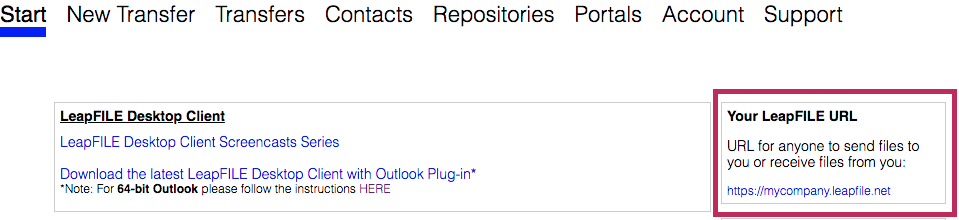
Share the clean URL (e.g., https://mycompany.leapfile.net) with colleagues and clients.
Don't Share Session URLs
Never share a URL that includes a long session ID or extra path information (e.g., https://mycompany.leapfile.net/blah/blah). These URLs contain time-sensitive security tokens and will result in errors.
Can I change my email address?
No. An email address cannot be edited, either by you or by an account administrator. The Email field on a user's profile is read-only.
To move someone to a different address, an administrator deletes the user under Account Settings → Users → Accounts and adds them again with the new address. Two things do not follow the user across:
- Transfers stay with the old address. Transfers are matched to the email address they were sent to or from, so sent transfers, drafts and pending incoming transfers remain attached to the old address and no longer appear in the user's lists. They aren't deleted, but they drop out of that user's view. Download or complete anything still in flight first.
- Repository and portal access is removed. Deleting the user removes their repository and portal authorizations. Grant them again after adding the new user.
The designated administrator is an exception
The administrator designated on the billing account cannot be deleted, so that address cannot be moved this way at all. Contact Leapfile support if you need to change it.
Why is my account disabled?
Accounts are typically disabled due to:
- Inactivity: Your account may be automatically disabled if the administrator has enabled an inactivity policy
- Manual disabling: An administrator disabled your account
- Billing issues: Subscription or payment problems

Solution: Contact your Leapfile account administrator and ask them to re-enable your account from Account Settings → Users → Accounts. Leapfile support cannot do this for security reasons.
Sending & Receiving Files
What is the maximum file size I can send?
Two separate limits apply, and a file has to pass both.
Your account limit is the per-file maximum set by your account plan. It is checked before the upload starts: a file over the limit is refused with a message naming your account's limit and the size of the file.
Your browser limit is 10 GB in Chrome and 4 GB in every other browser. It applies to each file and to the combined size of the whole transfer, so several smaller files can reach it together even when none of them exceeds it alone.
The Desktop Client is not subject to the browser limit. Your account limit still applies to it.
For Large Files
Use the Leapfile Desktop Client for files above your browser limit, or for improved reliability with large transfers.
If you need a higher account limit, contact your account representative.
How can someone send files to me?
Anyone can send files to you without needing a Leapfile account:
- They visit your company's Leapfile URL (e.g.,
https://yourcompany.leapfile.net) - Click Secure Upload
- Enter your email address as the recipient
- Provide their contact information
- Select and upload files
- You receive an email notification when the files are ready
Info
Files uploaded to you do not count toward your transfer quota as long as they are not downloaded.
How do I find an old transfer I sent?
Transfers → Outgoing Transfers opens on the last 7 days, so an older transfer is usually just outside the range. Widen it with the 14 days or 30 days buttons, or set your own start and end dates, then use the search box at the right of the filter bar. Search matches the recipient's name, the recipient's email address and the transfer subject, and it starts working once you type three characters.
If you remember the transfer but not the recipient, switch the Recipients / Transfers control to Transfers to get one row per transfer instead of one row per recipient. See Finding a past transfer for the full procedure.
Can I recover an expired transfer?
No. Once a transfer has expired or been fully downloaded, the files are permanently deleted from Leapfile's servers for security reasons. You cannot recover or resend expired transfers.
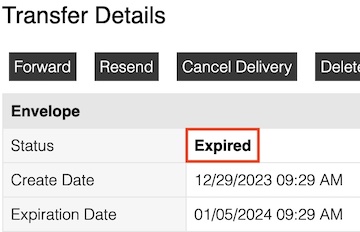
To prevent this:
- Use Repositories or Portals for files that need to be stored permanently
- Extend expiration dates before they expire
- Download important files before expiration
Can I extend or resend a transfer?
Yes, if the transfer hasn't expired yet:
- Go to Transfers → Outgoing Transfers
- Click details on the specific transfer
- Click the Resend button
This resets the download window for recipients who haven't downloaded yet.
Why am I not getting email notifications?
Email notifications from no_reply@leapfile.com may be caught in your spam or junk mail folder.
Solutions:
- Check your spam/junk folder
- Add
no_reply@leapfile.comto your safe sender list - Create an Outlook rule to automatically move Leapfile notifications to a specific folder
- Contact your IT department to whitelist the sender
Organize Notifications
Create a dedicated "Leapfile" folder in Outlook and set up a rule to automatically move notifications there. See the Desktop & Outlook guide for instructions.
How do I control which confirmation emails I receive?
Go to the user menu (avatar, top-right) → My Profile → Preferences → Outgoing Defaults. These options control the default confirmation emails for every transfer you send:
- Transfer confirmation — email when a transfer is sent (default: off)
- Receipt confirmation — email when a transfer is read (default: off)
- Download confirmation — email when files are downloaded (default: on)
You can also override these per-transfer under Show optional settings when composing.
One more default sits elsewhere: at My Profile → Preferences → Transfer Notifications, under Recipient visibility, the checkbox Hide distribution list (recipients cannot see who else received the transfer) decides whether a new transfer starts with the distribution list hidden. It is on to begin with, and you can still change it on any individual transfer.
Can I set an auto-reply for incoming transfers?
Yes — go to the user menu → My Profile → Preferences → Auto-Reply, check Activate auto-reply message, fill in Subject and Message, and click Save. The sender's original message and filenames are appended to the reply. Your text is preserved when the feature is toggled off.
Note
Auto-Reply and CC Notifications require a subscription with incoming transfers enabled. These pages are hidden otherwise.
Other notification settings under My Profile → Preferences:
- Message Signature — text appended to outgoing transfer notification emails
- CC Notifications — CC all incoming transfer notifications to additional email addresses
How do recipients download files?
For Leapfile users (internal employees):
- Log in to their Leapfile account
- Go to Transfers → Incoming Transfers
- Click details on the transfer
- Download files
For non-users (external contacts):
- Click the secure link in the email notification
- Authenticate (if required) by entering their email address
- Download files before the transfer expires
Can recipients download using a tracking code?
Yes, but tracking codes are a sender-driven fallback — recipients don't receive them directly. The sender can find each recipient's tracking code in their confirmation email or on the outgoing transfer detail page (Transfers → Outgoing → click the transfer → Tracking Code column, format: XXX-XXX-XXX).
To use a tracking code, the recipient:
- Goes to
yourcompany.leapfile.net - Clicks Secure Download
- Enters their email address and the tracking code
- Downloads the files
This is useful when the recipient's notification email was lost or caught by a spam filter. The sender relays the tracking code to the recipient out-of-band (phone, chat, etc.).
Can a guest reply to a transfer notification with an attachment?
No. Simply replying to the notification email will not send attachments securely. The email goes to a no-reply address.
To send a file, guests must:
- Visit your Leapfile URL
- Click Secure Upload
- Start a new secure transfer
Transfers & Features
Where can I copy incoming transfers to a Portal or Repository?
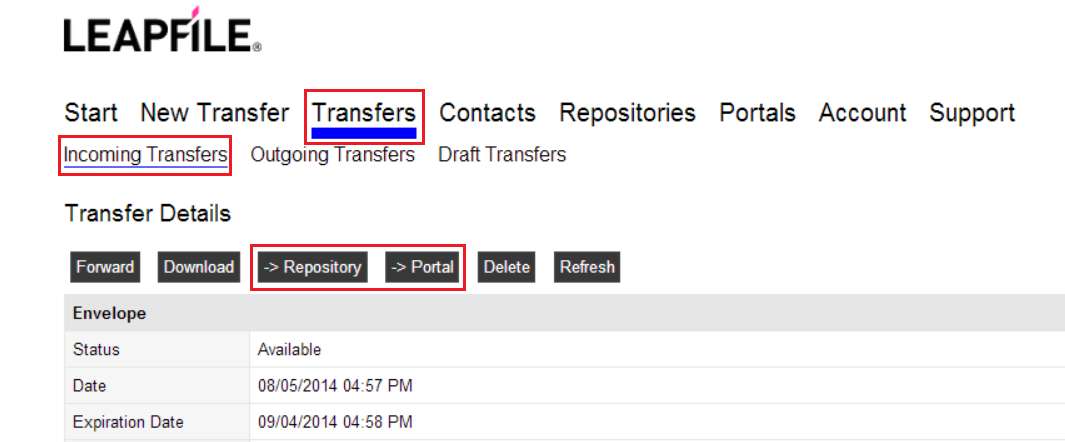
Go to Transfers → Incoming Transfers. For each transfer, you'll see buttons labeled → Portal and → Repository that allow you to copy received files to permanent storage.
Can I use CC or BCC when sending transfers?
The BCC field in the Outlook plugin is hardcoded for security and cannot be modified. Recipients are hidden from one another by default: a new transfer starts with the distribution list hidden, so recipients cannot see who else received it. You can change that on any individual transfer, and you can change your own default at My Profile → Preferences → Transfer Notifications, under Recipient visibility.
However, administrators can set up account-wide BCC archiving:
- Go to Account Settings → Transfer → Notifications
- Enter an email address to receive copies of all transfer notifications
- Click Save
This is useful for compliance and record-keeping.
What is Client Email Verification for uploads?
By default, non-users who upload files via your Leapfile page must perform a one-time email verification to prevent spam.
Administrators can disable this requirement:
- Go to Account Settings → Transfer → Uploaders
- Disable the verification requirement
- Click Save
If disabled, recipients will see a warning that the sender is "unverified."
Someone abused our Upload page — how do we lock it down?
Upload pages are public by design. Three settings tighten them, and they combine:
- Recipient Selection Mode — switch away from User List so senders can't enumerate or target your staff roster.
- Email Verification Policy — require senders to verify their address before uploading, so they can't impersonate someone.
- Incoming Transfer Rules — use Blocking and Exception Rules to restrict to known senders.
How do I cancel a transfer?
To cancel a transfer before recipients download it:
- Go to Transfers → Outgoing Transfers
- Click details on the transfer
- Click Cancel Delivery
Note
Files already downloaded cannot be recalled. Canceling prevents remaining recipients from accessing the files.
Billing & Plans
How do I update my credit card information?
To update payment information:
- Log in to your Leapfile account
- Go to Account Settings → Billing → Credit Card
- Enter new card details
- Click Save
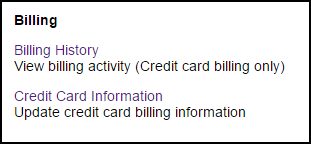
Administrator Access Required
You must be an administrator to access billing information.
For billing questions, contact: billing@leapfile.com
What happens if my account exceeds its quota?
Depending on your service plan:
- Storage quota: You may be unable to send new transfers or upload to repositories/portals until you free up space
- Transfer quota: New transfers may be blocked until the next billing cycle
- User limit: You may be unable to add new users
Contact your account administrator or Leapfile support to upgrade your plan.
Technical Questions
Where are log files located?
If Leapfile support requests log files, you can find them here:
LFComHub.txt:
C:\Program Files (x86)\LeapFILE\LeapFILE Desktop\Log\
LFDesktopClientLog.txt:
C:\Users\<username>\AppData\Roaming\LeapFILE\Log\

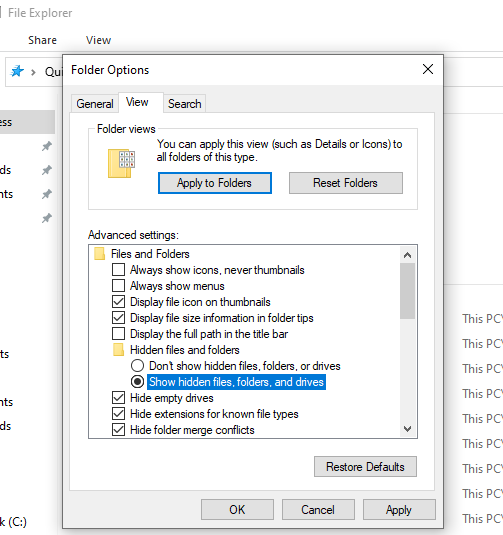
Viewing Hidden Folders
The AppData folder is hidden by default. Enable "Show hidden files" in File Explorer options to view it.
Send these files to support@leapfile.com when requested.
Does Leapfile work in Citrix environments?
Yes, the Leapfile Desktop Client and Outlook Plugin work in Citrix environments when both applications run as published applications.
For best results:
- Install the desktop client on the Citrix server
- Publish both the desktop client and Outlook as Citrix applications
- Ensure proper network connectivity from the Citrix environment
Can I use the desktop client via command line?
Yes, advanced users can automate transfers using the command-line interface (LeapFILECmd.exe).
See the Desktop & Outlook guide for detailed instructions and examples.
For automation that does not depend on a Windows machine with the desktop client installed, use the Transfer API instead.
Is there an API for sending transfers?
Yes. The Transfer API sends transfers over HTTPS from a script, a server, or any other system: create a transfer, attach files to it, send it, and check whether the recipients collected it. An administrator turns on the Transfer API feature under Account Settings → Account → Features and grants Use the transfer API to the users who need it; each of those users then creates their own API key from My Profile → Integrations → API Keys.
See the API documentation for setup, the Transfer API Reference for the endpoints, and Sending files programmatically for a worked integration.
What is "Event Monitoring" and can it feed my SIEM?
Yes. Event Monitoring (Account Settings → Security → Events) is a pull-based REST API that streams your account's activity — transfers sent, files downloaded, and related events — as JSON over HTTPS, so you can forward it into a SIEM or log pipeline (Microsoft Sentinel, Splunk, Cribl, or anything else that can poll a REST endpoint). An administrator enables it to generate an API key, then hands the key and your site URL to whoever builds the integration. See the Event Monitoring guide for the API details, the cursor-based polling model, rate limits, and per-SIEM setup notes.
Why do bookmarked pages show "Security Session Expired"?
Your sign-in is held in a browser cookie, not in the page address, so a bookmark never carries your session with it. What expires is the page you bookmarked: the internal pages you reach after logging in are tied to one transfer or to one step of a download, and that link stops working once the transfer is picked up, canceled or expired. Opening the bookmark later produces a session error instead of the page you saved.
Solution:
- Bookmark only your company's base URL (e.g.,
https://mycompany.leapfile.net) - Do not bookmark internal pages or pages with long query strings
- Always use fresh download links from transfer notification emails
To edit an existing bookmark:
Chrome: 1. Open Bookmarks → Bookmark Manager 2. Find the Leapfile bookmark 3. Click the dropdown arrow and select Edit 4. Update the URL
Repositories & Portals
I don't see the Repositories or Portals link
These features may be disabled in your account.
Solution: Contact your account administrator. They can enable these features under Account Settings → Account → Features.
How do I download all files from a Repository or Portal?
To download an entire repository or portal as a zip file:
- Open the repository or portal
- Check the Select All checkbox at the top
- Click the Send button
- Send the transfer to yourself
- Go to Incoming Transfers to download the zip file
Can guests upload files directly to portals?
No. Guests cannot upload files directly to portals to prevent accidental file deletion or overwrites.
Alternative:
- Guest sends a regular transfer to a Leapfile user via Secure Upload
- User logs in and goes to Incoming Transfers
- User clicks → Portal to copy the files into the portal
What's the best way to upload large files to a Repository?
Use the Leapfile Desktop Client or Outlook Plugin:
- Create a transfer to yourself with the files
- Log in to the web client
- Go to Incoming Transfers
- Click → Repository to copy files into the repository
See the Portals & Repositories guide for detailed instructions.
Still Have Questions?
If you can't find the answer here:
- Check the Troubleshooting guide for technical issues
- Review the Getting Started guide for basic usage
- Watch video tutorials
- Contact your Leapfile account administrator
- Email support: support@leapfile.com