Troubleshooting
Solutions to common issues with Leapfile web client, desktop client, and Outlook plugin.
General Issues
Error: "This Account Has Been Disabled"
Cause: Your account was disabled due to inactivity or by an administrator.

Solution:
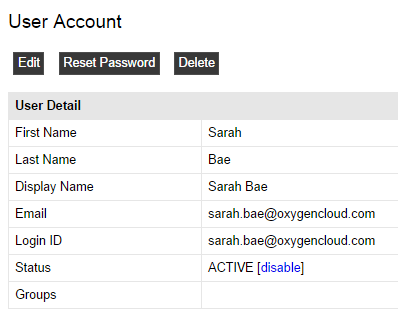
Contact your Leapfile account administrator and ask them to re-enable your account:
- Administrator goes to Account Settings → Users → Accounts
- Clicks your name
- Clicks the Enable button
Security Policy
Leapfile support cannot enable accounts for security reasons. Only your account administrator can do this.
Prevention: Check if automatic disabling is enabled under Account Settings → Security → Password (Disable inactive accounts policy). Your administrator can adjust the inactivity period or disable this feature entirely.
Error: "Download Link Error" / Broken Download Links
Cause: Session expired, browser cache issues, or security software blocking access.
Solutions:
- Clear browser cache using refreshyourcache.com
- Copy and paste the URL directly into a new browser tab instead of clicking the link
- Check antivirus/firewall settings - ensure they're not blocking Leapfile
- For Leapfile users: Log in directly and access files from Incoming Transfers
- Request a new link from the sender if the original has expired
Error: "Security Session Expired"
Cause: You bookmarked an internal Leapfile page. Your sign-in is held in a browser cookie rather than in the page address, but the internal pages you reach after logging in are tied to one transfer or to one step of a download. That link stops working once the transfer is picked up, canceled or expired, so the bookmark returns a session error.
Solution:
Always bookmark only your company's base URL (e.g., https://mycompany.leapfile.net), not an internal page URL. To reach a specific transfer, use the link in the notification email or open it from your transfer lists.
To fix an existing bookmark:
Chrome: 1. Open Bookmarks → Bookmark Manager 2. Find the Leapfile bookmark 3. Click the dropdown and select Edit 4. Update the URL to the base domain
Firefox: See Firefox bookmark management guide
Email Notifications Not Arriving
Cause: Email from no_reply@leapfile.com is being filtered to spam or blocked.
Solutions:
- Check spam/junk folders
- Add to safe sender list:
- Add
no_reply@leapfile.comto your email client's safe senders - Contact IT to whitelist the domain
- Create an Outlook rule to move notifications to a dedicated folder:
- Open an email from
no_reply@leapfile.com - Go to Message → Rules → Create Rule
- Check From [sender]
- Check Move the item to folder
- Select or create a Leapfile folder
- Click OK
Slow Upload or Download Speeds
Causes: Network connection, file size, browser limitations, or server load.
Solutions:
- Use the Desktop Client for large files - it's faster and more reliable
- Check your internet connection - test speed at speedtest.net
- Try during off-peak hours - server load may be high during business hours
- Disable VPN temporarily if upload speeds are unusually slow
- Check firewall/proxy settings - they may be throttling connections
Desktop Client Issues
Try Ask Leapfile first
The latest Leapfile Desktop Client includes 🤖 Ask Leapfile in the tray menu — an in-product AI assistant that can read your local logs, walk through common problems, and perform fixes on your machine. For most desktop client issues, this is the fastest way to get help. See Ask Leapfile in the Desktop & Outlook guide.
Error: Invalid Login / Invalid APIKey
Cause: Desktop client credentials are outdated, usually after a password change.
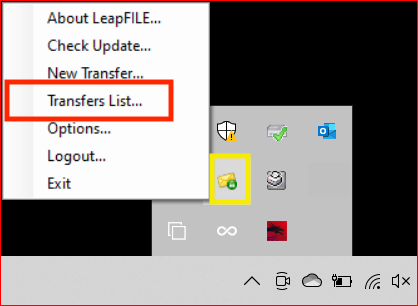
Solution:
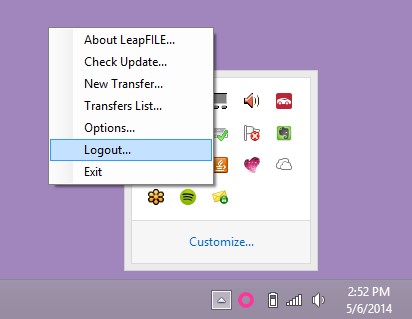
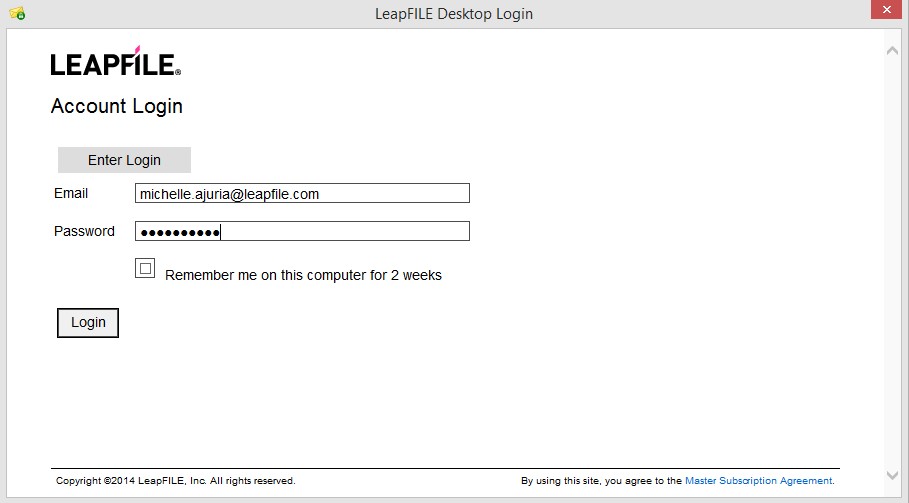
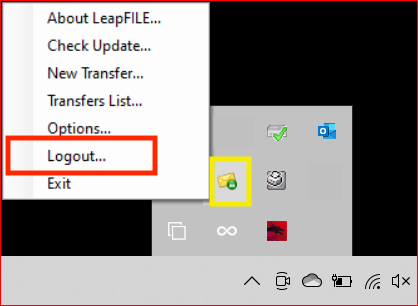
- Right-click the Leapfile icon in the system tray
- Select Logout
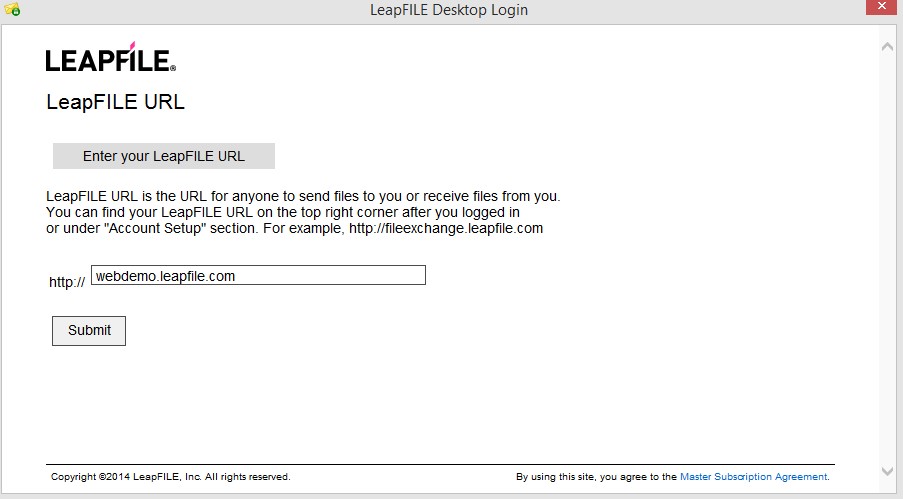
- Right-click again and select Login
- Enter your Leapfile URL
- Enter your email and new password
Error: Authentication Option is Currently Disabled
Cause: Your administrator disabled a specific security option you selected for a transfer.
Solution:
Option 1: Restart the application 1. Right-click the Leapfile icon and select Exit 2. Relaunch from the Start Menu to sync latest settings
Option 2: Contact administrator Ask your administrator to re-enable the option: 1. Go to Account Settings → Transfer → Downloaders 2. Enable the required authentication method 3. Click Save
Error: Unable to Connect / "Establishing Authentication Session"
Cause: Firewall, proxy, anti-virus, or web filter blocking the desktop client.
Solution:
Contact your IT department and provide this whitelist information:
Executables to whitelist:
- LeapFILEDesktopClient.exe
- LeapFILEComHub.exe
Network requirements:
- Port: 443 (HTTPS) must be open
- Domains: allow both *.leapfile.net and *.leapfile.com. Common hosts are api.leapfile.net and fileexchange.leapfile.net. Which domain your account uses depends on its Leapfile service (some services use .leapfile.net, others .leapfile.com), so allow both wildcards to be safe.
- IPs: 54.227.253.124 and 174.129.208.74
Test connectivity:
Visit these URLs in a browser - a blank page indicates success: - https://api.leapfile.net/services/rest - https://fileexchange.leapfile.net/services/rest
Configure proxy settings:
If you're behind a corporate proxy: 1. Right-click the Leapfile system tray icon 2. Select Options → Connection 3. Enter proxy server details 4. Click OK
Error: Waiting for Leapfile ComHub to Start Timed Out
Cause: The Leapfile service is stopped or blocked by another application.
Solution:
Step 1: Check antivirus
Ensure your antivirus is not blocking:
- LeapFileComHub.exe
- LeapFileDesktopClient.exe
Add these to your antivirus exceptions/whitelist.
Step 2: Start the service manually
1. Press Windows+R
2. Type services.msc and press Enter
3. Find Leapfile ComHub Service
4. Right-click and select Properties
5. Set Startup type to Automatic
6. Click the Recovery tab
7. Set all failure actions to Restart the Service
8. Click OK
9. Right-click the service and select Start
10. Reboot your computer
Step 3: Complete reinstall (if needed)
If the issue persists:
1. Uninstall Leapfile Desktop Client
2. Delete C:\Program Files (x86)\LeapFILE
3. Delete C:\Users\<username>\AppData\Roaming\LeapFILE
4. Delete registry keys (use caution):
- HKEY_LOCAL_MACHINE\Software\LeapFILE
- HKEY_CURRENT_USER\Software\LeapFILE
5. Reboot
6. Reinstall the desktop client
Failed Transfers via Desktop Client
Check the Transfers List:
- Right-click the Leapfile system tray icon
- Select Transfers List
- View the status of your transfer
Common errors and solutions:
Error 1: Invalid Login - See "Invalid Login / Invalid APIKey" above
Error 2: Failed Invalid Request - See "Authentication Option is Currently Disabled" above
Note
Failed transfers must be resent. There is no retry function.
Network Error / Failed to Connect (After Microsoft Update)
Cause: A Microsoft update caused connectivity issues for some users.
Solution:
- Close all Office applications
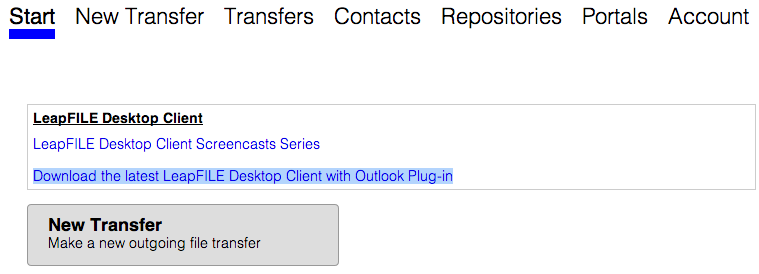
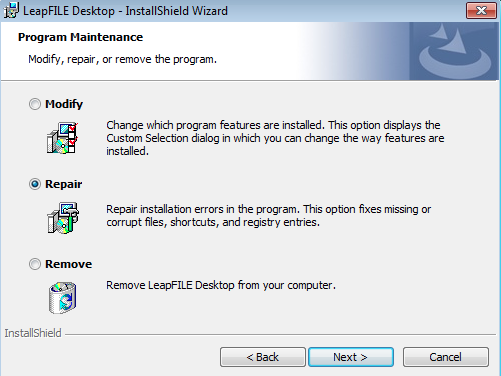
- Download the latest Leapfile Desktop Client from your account
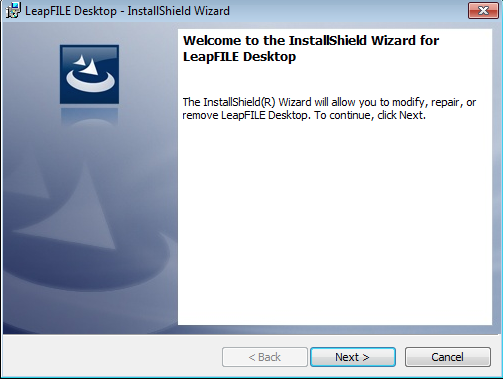
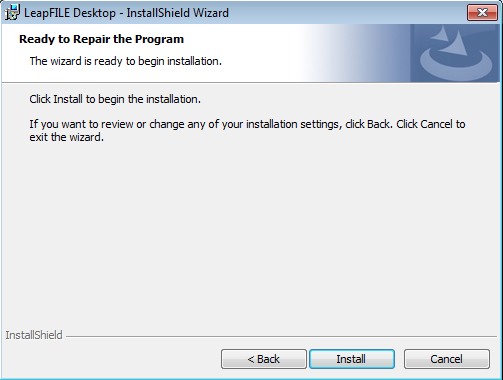
- Run the installer
- Select Repair when prompted
Outlook Plugin Issues
Outlook Plugin Missing or Not Visible
Solution 1: Enable the add-in
- In Outlook, go to File → Options → Add-ins
- At the bottom, select COM Add-ins from the dropdown
- Click Go
- Check the Leapfile Add-in box
- Click OK
- Wait 5 seconds
- Restart Outlook

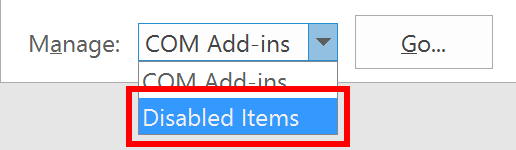
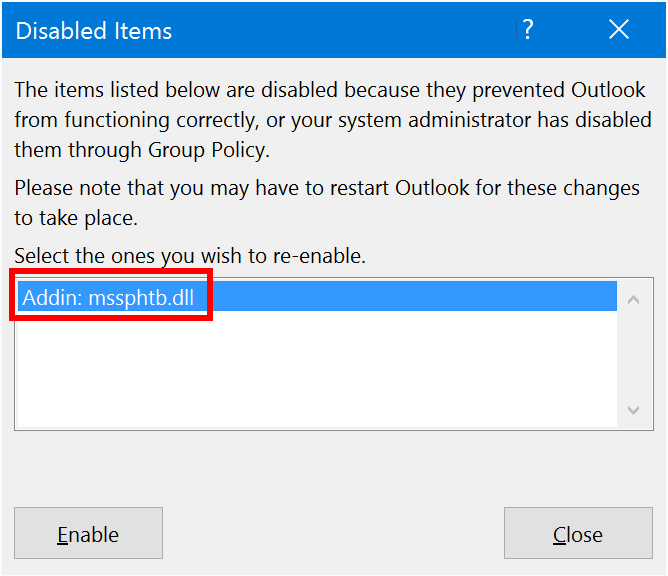
Solution 2: Enable from Disabled Items
If the add-in was disabled by Outlook:
- Go to File → Options → Add-ins
- Select Disabled Items from the dropdown
- Click Go
- Select the Leapfile Add-in
- Click Enable
- Wait 5 seconds
- Restart Outlook
Outlook Keeps Disabling the Plugin
Cause: Outlook's security measures mistakenly flag Leapfile as slow or problematic.
Solutions:
Option 1: Run Outlook as Administrator (when enabling the add-in)
Option 2: Always enable this add-in When Outlook shows the "Slow and Disabled COM Add-ins" dialog, check Always enable this add-in.
Option 3: Modify registry (advanced)
Registry Editing
Exercise extreme caution when editing the Windows registry. Incorrect changes can cause system issues.
Adjust the LoadBehavior value:
- Press Windows+R
- Type
regeditand press Enter - Navigate to:
HKEY_CURRENT_USER\Software\Microsoft\Office\Outlook\Addins\LeapFileAddIn.AddinModule - Double-click LoadBehavior
- Change the value to 3
- Click OK
- Restart Outlook
Option 4: Modify Resiliency keys (advanced)
For Office 2010/2013/2016:
- Open Registry Editor
- Navigate to:
HKEY_CURRENT_USER\Software\Microsoft\Office\[version]\Outlook\Resiliency - Office 2010: version = 14.0
- Office 2013: version = 15.0
- Office 2016/2019: version = 16.0
- Under DisabledItems, remove any Leapfile entries
- Under DoNotDisableAddinList, add a new DWORD value:
- Name:
LeapFileAddIn.AddinModule - Value:
1 - Restart Outlook
Error: Redemption.dll Not Registered (64-bit Plugin)
Cause: Outlook launched before the 64-bit plugin installation completed.
Solution: Complete Reinstall
- Close all Office applications
- Uninstall Leapfile Desktop Client (the Outlook add-in is part of it; there is no separate add-in entry)
- Delete installation folders:
C:\Program Files (x86)\LeapFILEC:\Program Files\LeapFILE- Delete from Documents: Add-in Express folder
- Delete
C:\Users\<username>\AppData\Roaming\LeapFILE - Delete registry keys (use caution):
HKEY_CURRENT_USER\Software\LeapFILEHKEY_LOCAL_MACHINE\Software\LeapFILEHKEY_LOCAL_MACHINE\Software\WOW6432node\LeapFILE- Any Outlook Add-ins references to Leapfile
- Repair Microsoft Office:
- Use the official tool: aka.ms/diag_officeuninstall
- Reboot your computer
- Install the Leapfile Desktop Client (the Outlook add-in installs with it). Do not open Outlook until installation finishes.
- Launch Outlook
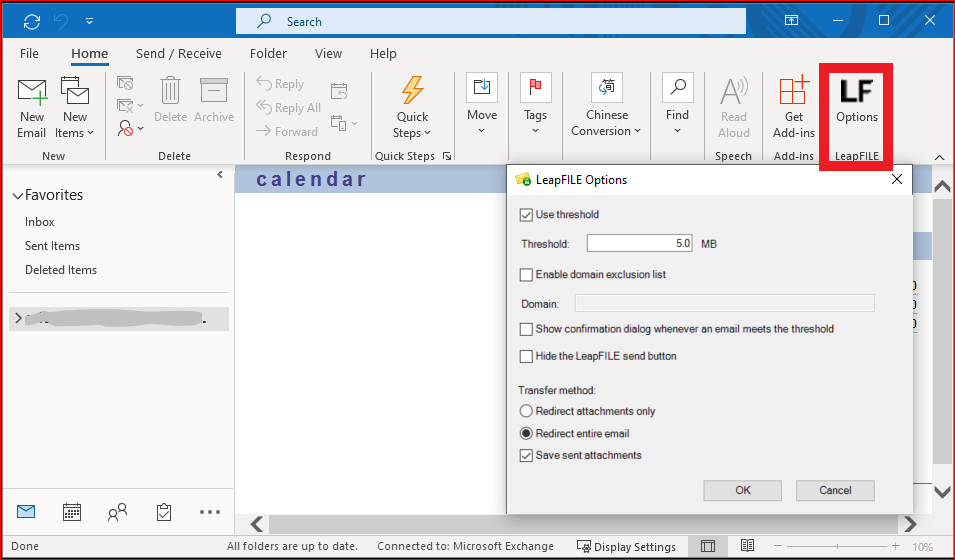
Outlook Plugin Not Sending Large Files
Cause: The size threshold may be set incorrectly or disabled.
Solution:
- In Outlook, click the LF Options button
- Check Use threshold
- Verify the size setting (default: 5 MB)
- Adjust if needed
- Click OK
Installation Issues
Error: .NET Framework Required
Cause: The required .NET Framework is missing. The Leapfile Desktop Client requires .NET Framework 4.8.
Solution:
.NET Framework 4.8 ships with current versions of Windows 10 and Windows 11, so it is usually already present. If the installer reports it is missing, install it from Microsoft and retry:
- Download .NET Framework 4.8 from Microsoft's official download page
- Run the installer and follow the prompts
- Reboot if prompted
- Retry the Leapfile installation
Note
An internet connection is required to download the .NET Framework installer.
Installation Hangs or Fails
Solutions:
- Close all Office applications before installing
- Run installer as Administrator:
- Right-click the installer
- Select Run as administrator
- Disable antivirus temporarily during installation
- Check disk space - ensure you have at least 500 MB free
- Reboot and try again
Uninstalling Leapfile
To completely remove the desktop client and Outlook plugin:
Step 1: Uninstall via Control Panel
- Close all Office applications
- Go to Control Panel → Programs and Features (or Settings → Apps)
- Uninstall Leapfile Desktop Client (this removes the Outlook add-in too; there is no separate add-in entry)
Step 2: Delete Program Files
Delete these folders:
- C:\Program Files (x86)\LeapFILE
- C:\Program Files\LeapFILE (if it exists)
- C:\Users\<username>\Documents\Add-in Express
- C:\Users\<username>\AppData\Roaming\LeapFILE
Step 3: Delete Registry Keys (Optional but Recommended)
Registry Editing
Exercise caution when editing the Windows registry. Incorrect changes can cause system issues. See Microsoft's registry guide.
Delete these registry keys:
- HKEY_CURRENT_USER\Software\LeapFILE
- HKEY_LOCAL_MACHINE\Software\LeapFILE
- HKEY_LOCAL_MACHINE\Software\WOW6432node\LeapFILE
Step 4: Reboot
Reboot your computer to complete the uninstallation.
Step 5: Reinstall (if needed)
- Log in to your Leapfile account
- Download the latest installer
- Follow the installation steps in the Desktop & Outlook guide
Web Client Issues
Upload Fails or Doesn't Start
Solutions:
- Check file size:
- Browser limit: 10 GB in Chrome, 4 GB in every other browser, applied to each file and to the transfer total
- Your account plan also sets a per-file maximum, named in the message when a file exceeds it
- Use the Desktop Client for files above your browser limit
- Check browser compatibility: the supported baseline is Chrome 111 or later, Edge 111 or later, Safari 16.4 or later, and Firefox 128 or later. Internet Explorer is not supported. On most older browsers, an amber bar across the top of every page reads "This page may not display correctly. Update your browser to the latest version." The bar is a warning only — it does not block you from sending or downloading — but pages may render incorrectly until you update. Some versions just below the baseline do not show the bar, and the Outlook add-in never shows it, so update your browser if pages look wrong even when no warning appears.
- Disable browser extensions that might interfere
- Clear browser cache and cookies
- Try a different browser
Downloads Launch Files Instead of Saving
Cause: Browser settings automatically open certain file types.
Solution:
Right-click the download link and select: - Save Link As... (Chrome, Firefox) - Save Target As... (Internet Explorer) - Download Linked File (Safari)
Can't Access Repositories or Portals
Cause: Features may be disabled in your account.
Solution:
Contact your account administrator to enable: 1. Go to Account Settings → Account → Features 2. Enable Repositories and/or Portals 3. Click Save
When disabled, the Repositories and Portals links don't appear in the top menu.
Performance Optimization
Improve Upload Speeds
- Use the Desktop Client instead of the web interface
- Upload during off-peak hours (early morning or evening)
- Close unnecessary applications using bandwidth
- Connect via Ethernet instead of Wi-Fi if possible
- Disable VPN temporarily if speeds are unusually slow
Improve Download Speeds
- Use a wired connection instead of Wi-Fi
- Download files individually rather than all at once
- Use the Desktop Client for large files
- Check your internet speed at speedtest.net
- Contact your ISP if speeds are consistently slow
Getting Additional Help
If you've tried these solutions and still have issues:
Collect Information
Before contacting support, gather:
- Error messages: Screenshot or exact text
- Leapfile version: From About dialog or installer filename
- Operating system: Windows version
- Office version: 32-bit or 64-bit (if using Outlook plugin)
- Log files: See FAQ for log file locations
Contact Support
- Email: support@leapfile.com
- Include:
- Description of the issue
- Steps to reproduce
- Error messages
- Log files (if requested)
- System information
Contact Your Administrator
For account-related issues: - User account disabled - Permission issues - Feature enablement - Password resets
Contact your Leapfile account administrator, not Leapfile support.
Video Tutorials
Watch troubleshooting videos:
Additional Resources
- Getting Started Guide - Basic usage instructions
- Desktop & Outlook Guide - Installation and configuration
- FAQ - Common questions and answers
- Administration Guide - For administrators