Frequently Asked Questions
Find answers to common questions about using LeapFILE.
Account & Login
How do I reset my password?
If you've forgotten your password, you can reset it yourself:
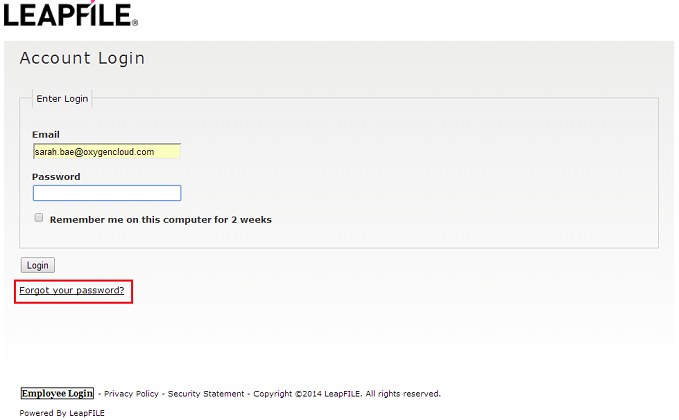
- Go to your company's LeapFILE URL and click Employee Login
- Click the Forgot my password link
- Enter your email address - a verification code will be sent to you
- Do not close the web page - check your email for the code
- Copy and paste the verification code into the page
- Set a new password
If self-service reset fails, contact your LeapFILE account administrator to reset your password.
Desktop Client Users
After resetting your password, you must log out of the LeapFILE Desktop Client and log back in with your new password:
- Right-click the LeapFILE icon in the system tray
- Select Logout
- Right-click again and select Login
- Enter your new password
What is my username?
Your username is always your email address. LeapFILE uses email addresses as the unique identifier for all accounts.
How do I find my company's LeapFILE URL?
Your custom LeapFILE URL is displayed on the Start page after you log in to your account.
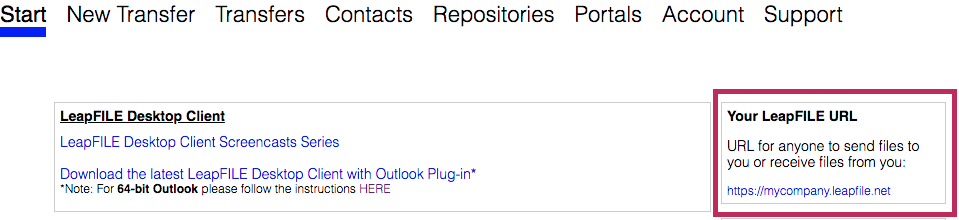
Share the clean URL (e.g., https://mycompany.leapfile.net) with colleagues and clients.
Don't Share Session URLs
Never share a URL that includes a long session ID or extra path information (e.g., https://mycompany.leapfile.net/blah/blah). These URLs contain time-sensitive security tokens and will result in errors.
Can I change my email address?
No, user email addresses cannot be changed directly. This is a security policy designed to maintain a clear audit trail, as all transfer history, logs, and permissions are tied to the email address.
To change an email address, your account administrator must:
- Create a new user account with the new email address
- Disable the old user account
This preserves the historical data of the old account while allowing you to use the new address.
Why is my account disabled?
Accounts are typically disabled due to:
- Inactivity: Your account may be automatically disabled if the administrator has enabled an inactivity policy
- Manual disabling: An administrator disabled your account
- Billing issues: Subscription or payment problems

Solution: Contact your LeapFILE account administrator and ask them to re-enable your account from Account → User Accounts. LeapFILE support cannot do this for security reasons.
Sending & Receiving Files
What is the maximum file size I can send?
The maximum file size depends on your account plan and the method you use:
- Web Interface (most browsers): 2-4 GB per file
- Enhanced Upload (HTML5): Up to 4 GB per file
- Desktop Client: No practical limit (depending on your account plan)

For Large Files
Use the LeapFILE Desktop Client for files larger than 4 GB or for improved reliability with large transfers.
If you need a higher file size limit, contact your account representative.
How can someone send files to me?
Anyone can send files to you without needing a LeapFILE account:
- They visit your company's LeapFILE URL (e.g.,
https://yourcompany.leapfile.net) - Click Secure Upload
- Enter your email address as the recipient
- Provide their contact information
- Select and upload files
- You receive an email notification when the files are ready
Info
Files uploaded to you do not count toward your transfer quota as long as they are not downloaded.
Can I recover an expired transfer?
No. Once a transfer has expired or been fully downloaded, the files are permanently deleted from LeapFILE's servers for security reasons. You cannot recover or resend expired transfers.
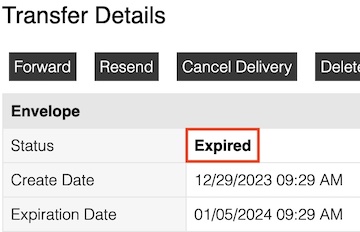
To prevent this:
- Use Repositories or Portals for files that need to be stored permanently
- Extend expiration dates before they expire
- Download important files before expiration
Can I extend or resend a transfer?
Yes, if the transfer hasn't expired yet:
- Go to Transfers → Outgoing Transfers
- Click details on the specific transfer
- Click the Resend button
This resets the download window for recipients who haven't downloaded yet.
Why am I not getting email notifications?
Email notifications from no_reply@leapfile.com may be caught in your spam or junk mail folder.
Solutions:
- Check your spam/junk folder
- Add
no_reply@leapfile.comto your safe sender list - Create an Outlook rule to automatically move LeapFILE notifications to a specific folder
- Contact your IT department to whitelist the sender
Organize Notifications
Create a dedicated "LeapFILE" folder in Outlook and set up a rule to automatically move notifications there. See the Desktop & Outlook guide for instructions.
How do recipients download files?
For LeapFILE users (internal employees):
- Log in to their LeapFILE account
- Go to Transfers → Incoming Transfers
- Click details on the transfer
- Download files
For non-users (external contacts):
- Click the secure link in the email notification
- Authenticate (if required) by entering their email address
- Download files before the transfer expires
Can recipients download using a tracking code?
Yes. Each transfer has a unique tracking code that recipients can use:
- Go to
yourcompany.leapfile.net - Click Secure Download
- Enter the tracking code
- Authenticate and download files
This is useful if the email notification was lost or deleted.
Can a guest reply to a transfer notification with an attachment?
No. Simply replying to the notification email will not send attachments securely. The email goes to a no-reply address.
To send a file, guests must:
- Visit your LeapFILE URL
- Click Secure Upload
- Start a new secure transfer
Transfers & Features
Where can I copy incoming transfers to a Portal or Repository?
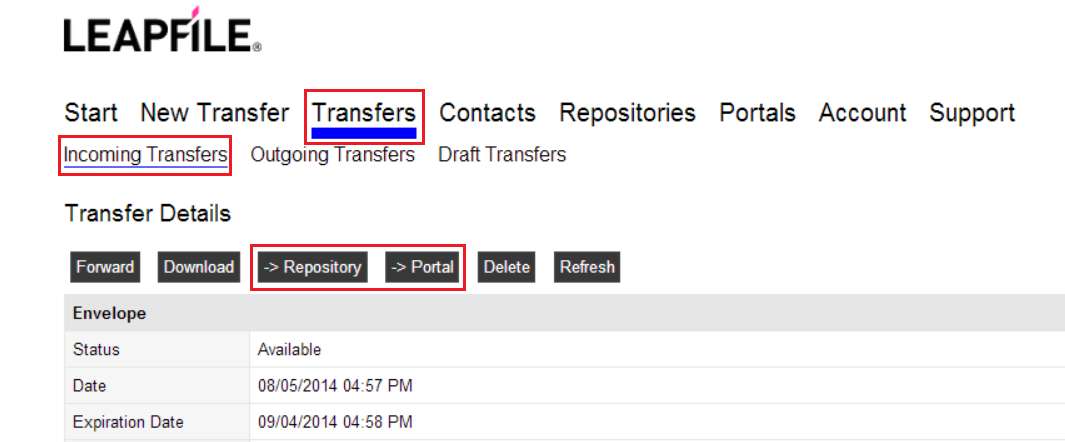
Go to Transfers → Incoming Transfers. For each transfer, you'll see buttons labeled → Portal and → Repository that allow you to copy received files to permanent storage.
Can I use CC or BCC when sending transfers?
The BCC field in the Outlook plugin is hardcoded for security and cannot be modified. Recipient masking is always enabled by default to protect recipient privacy.
However, administrators can set up account-wide BCC archiving:
- Go to Account → Account Setup → Archiving
- Enter an email address to receive copies of all transfer notifications
- Click Save
This is useful for compliance and record-keeping.
What is Client Email Verification for uploads?
By default, non-users who upload files via your LeapFILE page must perform a one-time email verification to prevent spam.
As of July 2025, administrators can disable this requirement:
- Go to Account → Account Setup → Email Verification Policy
- Disable the verification requirement
- Click Save
If disabled, recipients will see a warning that the sender is "unverified."
How do I cancel a transfer?
To cancel a transfer before recipients download it:
- Go to Transfers → Outgoing Transfers
- Click details on the transfer
- Click Cancel Delivery
Note
Files already downloaded cannot be recalled. Canceling prevents remaining recipients from accessing the files.
Billing & Plans
How do I update my credit card information?
To update payment information:
- Log in to your LeapFILE account
- Go to Account → Billing → Credit Card Information
- Enter new card details
- Click Save
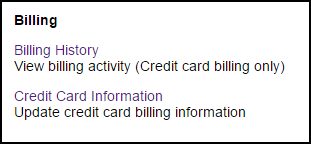
Administrator Access Required
You must be an administrator to access billing information.
For billing questions, contact: billing@leapfile.com
What happens if my account exceeds its quota?
Depending on your service plan:
- Storage quota: You may be unable to send new transfers or upload to repositories/portals until you free up space
- Transfer quota: New transfers may be blocked until the next billing cycle
- User limit: You may be unable to add new users
Contact your account administrator or LeapFILE support to upgrade your plan.
Technical Questions
Where are log files located?
If LeapFILE support requests log files, you can find them here:
LFComHub.txt:
C:\Program Files (x86)\LeapFILE\LeapFILE Desktop\Log\
LFDesktopClientLog.txt:
C:\Users\<username>\AppData\Roaming\LeapFILE\Log\

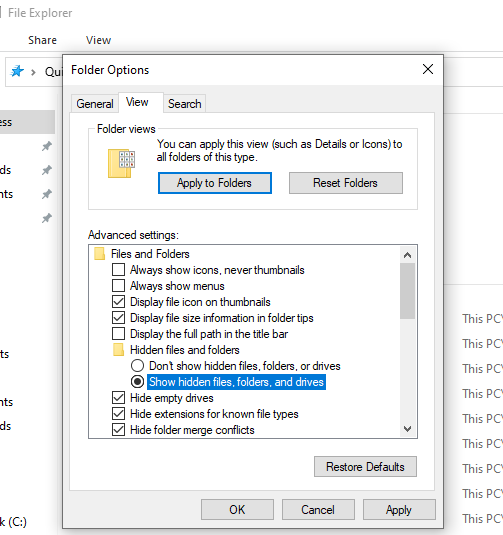
Viewing Hidden Folders
The AppData folder is hidden by default. Enable "Show hidden files" in File Explorer options to view it.
Send these files to support@leapfile.com when requested.
Does LeapFILE work in Citrix environments?
Yes, the LeapFILE Desktop Client and Outlook Plugin work in Citrix environments when both applications run as published applications.
For best results:
- Install the desktop client on the Citrix server
- Publish both the desktop client and Outlook as Citrix applications
- Ensure proper network connectivity from the Citrix environment
Can I use the desktop client via command line?
Yes, advanced users can automate transfers using the command-line interface (LeapFILECmd.exe).
See the Desktop & Outlook guide for detailed instructions and examples.
Why do bookmarked pages show "Security Session Expired"?
LeapFILE uses session-based security. When you bookmark a page after logging in, the URL contains a session ID that expires after 15 minutes of inactivity.
Solution:
- Bookmark only your company's base URL (e.g.,
https://mycompany.leapfile.net) - Do not bookmark internal pages or pages with long query strings
- Always use fresh download links from transfer notification emails
To edit an existing bookmark:
Internet Explorer: 1. Press Ctrl+D to view favorites 2. Right-click the LeapFILE bookmark 3. Select Properties 4. Replace with the base URL
Chrome: 1. Open Bookmarks → Bookmark Manager 2. Find the LeapFILE bookmark 3. Click the dropdown arrow and select Edit 4. Update the URL
Repositories & Portals
I don't see the Repositories or Portals link
These features may be disabled in your account.
Solution: Contact your account administrator. They can enable these features under Account → Account Setup → Feature Enablement.
How do I download all files from a Repository or Portal?
To download an entire repository or portal as a zip file:
- Open the repository or portal
- Check the Select All checkbox at the top
- Click the Send button
- Send the transfer to yourself
- Go to Incoming Transfers to download the zip file
Can guests upload files directly to portals?
No. Guests cannot upload files directly to portals to prevent accidental file deletion or overwrites.
Alternative:
- Guest sends a regular transfer to a LeapFILE user via Secure Upload
- User logs in and goes to Incoming Transfers
- User clicks → Portal to copy the files into the portal
What's the best way to upload large files to a Repository?
Use the LeapFILE Desktop Client or Outlook Plugin:
- Create a transfer to yourself with the files
- Log in to the web client
- Go to Incoming Transfers
- Click → Repository to copy files into the repository
See the Portals & Repositories guide for detailed instructions.
Still Have Questions?
If you can't find the answer here:
- Check the Troubleshooting guide for technical issues
- Review the Getting Started guide for basic usage
- Watch video tutorials
- Contact your LeapFILE account administrator
- Email support: support@leapfile.com