Troubleshooting
Solutions to common issues with LeapFILE web client, desktop client, and Outlook plugin.
General Issues
Error: "This Account Has Been Disabled"
Cause: Your account was disabled due to inactivity or by an administrator.

Solution:
Contact your LeapFILE account administrator and ask them to re-enable your account:
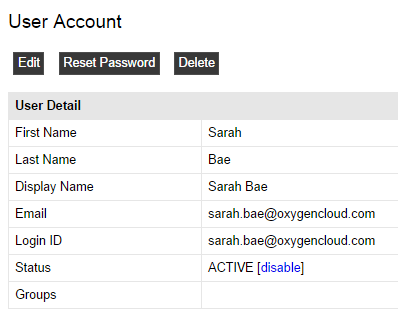
- Administrator goes to Account → User Accounts
- Clicks your name
- Clicks the Enable button
Security Policy
LeapFILE support cannot enable accounts for security reasons. Only your account administrator can do this.
Prevention: Check if automatic disabling is enabled under Account → Account Setup → Disable inactive accounts policy. Your administrator can adjust the inactivity period or disable this feature entirely.
Error: "Download Link Error" / Broken Download Links
Cause: Session expired, browser cache issues, or security software blocking access.
Solutions:
- Clear browser cache using refreshyourcache.com
- Copy and paste the URL directly into a new browser tab instead of clicking the link
- Check antivirus/firewall settings - ensure they're not blocking LeapFILE
- For LeapFILE users: Log in directly and access files from Incoming Transfers
- Request a new link from the sender if the original has expired
Error: "Security Session Expired"
Cause: You bookmarked a LeapFILE page that contains a session ID, which expires after 15 minutes of inactivity.
Solution:
Always bookmark only your company's base URL (e.g., https://mycompany.leapfile.net), not internal page URLs with session IDs.
To fix an existing bookmark:
Internet Explorer: 1. Press Ctrl+D to open favorites 2. Press Alt+C to access favorites 3. Right-click the LeapFILE URL 4. Select Properties 5. Replace the entire URL with your base URL
Chrome: 1. Open Bookmarks → Bookmark Manager 2. Find the LeapFILE bookmark 3. Click the dropdown and select Edit 4. Update the URL to the base domain
Firefox: See Firefox bookmark management guide
Email Notifications Not Arriving
Cause: Email from no_reply@leapfile.com is being filtered to spam or blocked.
Solutions:
- Check spam/junk folders
- Add to safe sender list:
- Add
no_reply@leapfile.comto your email client's safe senders - Contact IT to whitelist the domain
- Create an Outlook rule to move notifications to a dedicated folder:
- Open an email from
no_reply@leapfile.com - Go to Message → Rules → Create Rule
- Check From [sender]
- Check Move the item to folder
- Select or create a LeapFILE folder
- Click OK
Slow Upload or Download Speeds
Causes: Network connection, file size, browser limitations, or server load.
Solutions:
- Use the Desktop Client for large files - it's faster and more reliable
- Check your internet connection - test speed at speedtest.net
- Try during off-peak hours - server load may be high during business hours
- Disable VPN temporarily if upload speeds are unusually slow
- Check firewall/proxy settings - they may be throttling connections
- Use Enhanced Upload - click the Enhanced Upload button for better performance
Desktop Client Issues
Repair Utility
Try This First
For most desktop client issues, run the LeapFILE Repair Utility before troubleshooting manually:
- Close all Office applications
- Download: LF_Repair_Utility_v2.exe
- Right-click the file and select Run as administrator
The utility automatically detects and fixes common problems.
Error: Invalid Login / Invalid APIKey
Cause: Desktop client credentials are outdated, usually after a password change.
Solution:
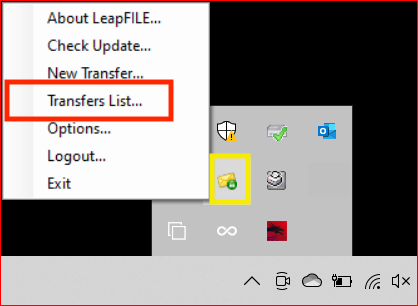
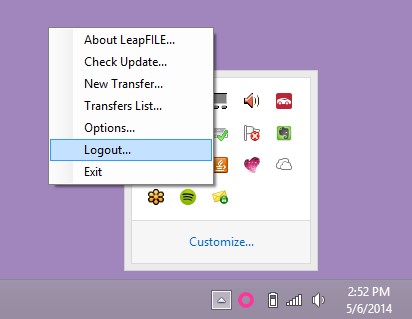
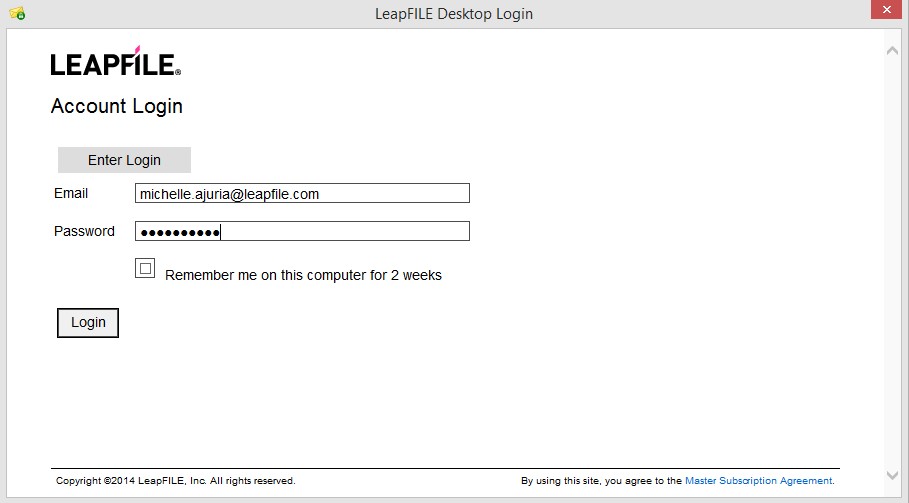
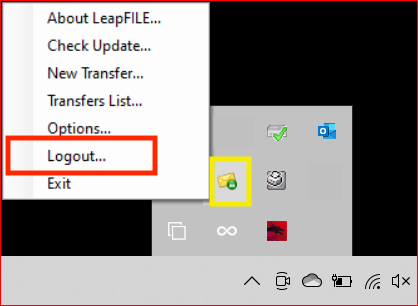
- Right-click the LeapFILE icon in the system tray
- Select Logout
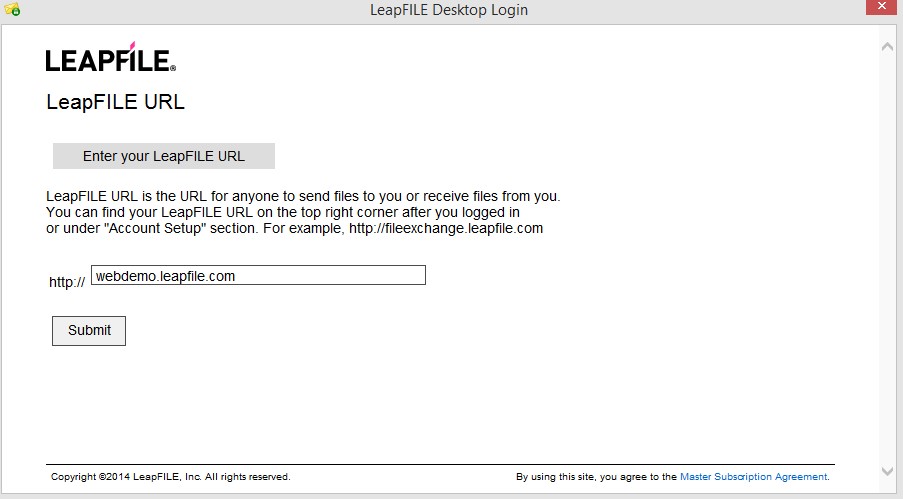
- Right-click again and select Login
- Enter your LeapFILE URL
- Enter your email and new password
Error: Authentication Option is Currently Disabled
Cause: Your administrator disabled a specific security option you selected for a transfer.
Solution:
Option 1: Restart the application 1. Right-click the LeapFILE icon and select Exit 2. Relaunch from the Start Menu to sync latest settings
Option 2: Contact administrator Ask your administrator to re-enable the option: 1. Go to Account → Account Setup → Receiver Authentication Option 2. Enable the required authentication method 3. Click Save
Error: Unable to Connect / "Establishing Authentication Session"
Cause: Firewall, proxy, anti-virus, or web filter blocking the desktop client.
Solution:
Contact your IT department and provide this whitelist information:
Executables to whitelist:
- LeapFileDesktopClient.exe
- LeapFileComhub.exe
Network requirements:
- Port: 443 (HTTPS) must be open
- Domains: api.leapfile.net, fileexchange.leapfile.net, *.leapfile.com, *.leapfile.net
- IPs: 54.227.253.124 and 174.129.208.74
Test connectivity:
Visit these URLs in a browser - a blank page indicates success: - https://api.leapfile.net/services/rest - https://fileexchange.leapfile.net/services/rest
Configure proxy settings:
If you're behind a corporate proxy: 1. Right-click the LeapFILE system tray icon 2. Select Options → Connection 3. Enter proxy server details 4. Click OK
Error: Waiting for LeapFILE ComHub to Start Timed Out
Cause: The LeapFILE service is stopped or blocked by another application.
Solution:
Step 1: Check antivirus
Ensure your antivirus is not blocking:
- LeapFileComHub.exe
- LeapFileDesktopClient.exe
Add these to your antivirus exceptions/whitelist.
Step 2: Start the service manually
1. Press Windows+R
2. Type services.msc and press Enter
3. Find LeapFILE ComHub Service
4. Right-click and select Properties
5. Set Startup type to Automatic
6. Click the Recovery tab
7. Set all failure actions to Restart the Service
8. Click OK
9. Right-click the service and select Start
10. Reboot your computer
Step 3: Complete reinstall (if needed)
If the issue persists:
1. Uninstall LeapFILE Desktop Client
2. Delete C:\Program Files (x86)\LeapFILE
3. Delete C:\Users\<username>\AppData\Roaming\LeapFILE
4. Delete registry keys (use caution):
- HKEY_LOCAL_MACHINE\Software\LeapFILE
- HKEY_CURRENT_USER\Software\LeapFILE
5. Reboot
6. Reinstall the desktop client
Failed Transfers via Desktop Client
Check the Transfers List:
- Right-click the LeapFILE system tray icon
- Select Transfers List
- View the status of your transfer
Common errors and solutions:
Error 1: Invalid Login - See "Invalid Login / Invalid APIKey" above
Error 2: Failed Invalid Request - See "Authentication Option is Currently Disabled" above
Note
Failed transfers must be resent. There is no retry function.
Network Error / Failed to Connect (After Microsoft Update)
Cause: A Microsoft update caused connectivity issues for some users.
Solution:
- Close all Office applications
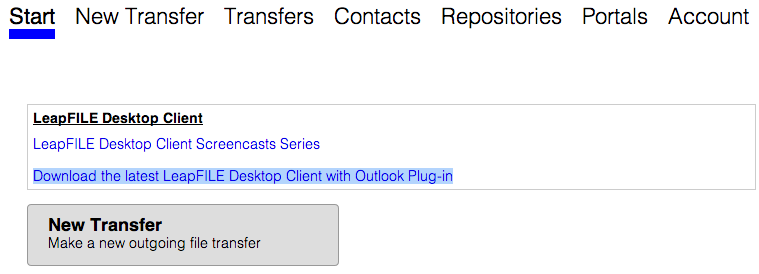
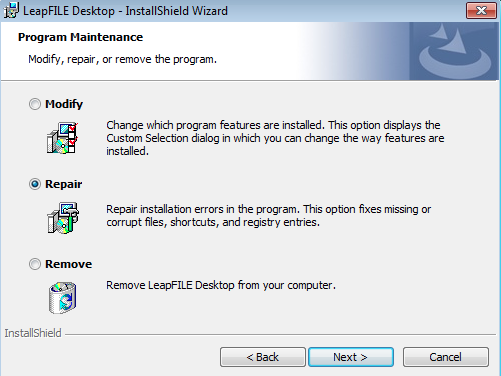
- Download the latest LeapFILE Desktop Client from your account
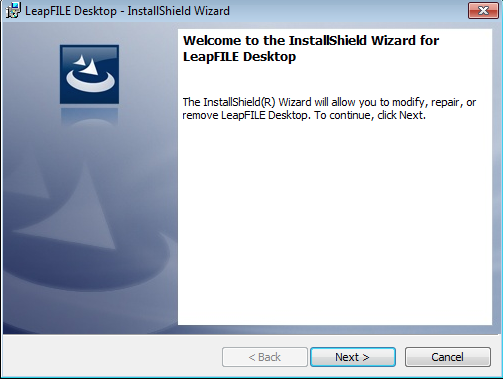
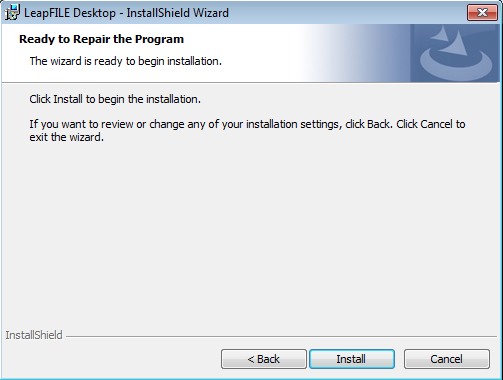
- Run the installer
- Select Repair when prompted
Outlook Plugin Issues
Outlook Plugin Missing or Not Visible
Solution 1: Enable the add-in
- In Outlook, go to File → Options → Add-ins
- At the bottom, select COM Add-ins from the dropdown
- Click Go
- Check the LeapFILE Add-in box
- Click OK
- Wait 5 seconds
- Restart Outlook

Solution 2: Enable from Disabled Items
If the add-in was disabled by Outlook:
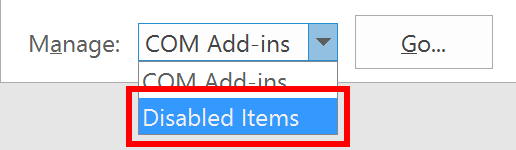
- Go to File → Options → Add-ins
- Select Disabled Items from the dropdown
- Click Go
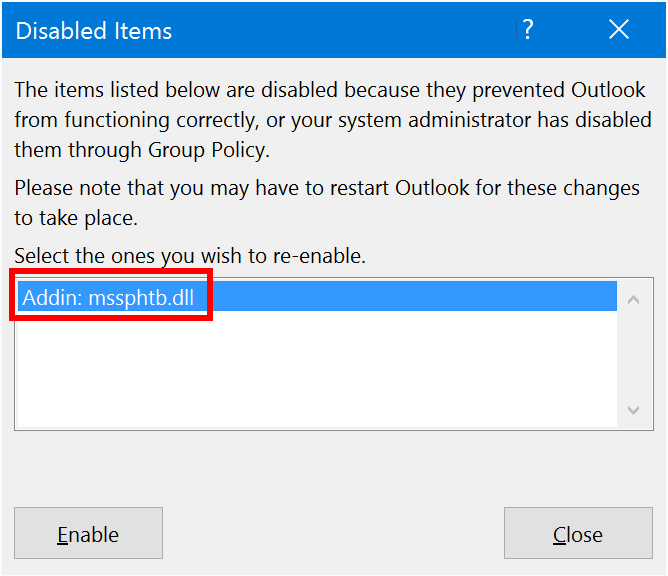
- Select the LeapFILE Add-in
- Click Enable
- Wait 5 seconds
- Restart Outlook
Outlook Keeps Disabling the Plugin
Cause: Outlook's security measures mistakenly flag LeapFILE as slow or problematic.
Solutions:
Option 1: Run Outlook as Administrator (when enabling the add-in)
Option 2: Always enable this add-in When Outlook shows the "Slow and Disabled COM Add-ins" dialog, check Always enable this add-in.
Option 3: Modify registry (advanced)
Registry Editing
Exercise extreme caution when editing the Windows registry. Incorrect changes can cause system issues.
Adjust the LoadBehavior value:
- Press Windows+R
- Type
regeditand press Enter - Navigate to:
HKEY_CURRENT_USER\Software\Microsoft\Office\Outlook\Addins\LeapFILE - Double-click LoadBehavior
- Change the value to 3
- Click OK
- Restart Outlook
Option 4: Modify Resiliency keys (advanced)
For Office 2010/2013/2016:
- Open Registry Editor
- Navigate to:
HKEY_CURRENT_USER\Software\Microsoft\Office\[version]\Outlook\Resiliency - Office 2010: version = 14.0
- Office 2013: version = 15.0
- Office 2016/2019: version = 16.0
- Under DisabledItems, remove any LeapFILE entries
- Under DoNotDisableAddinList, add a new DWORD value:
- Name:
LeapFILE.addin - Value:
1 - Restart Outlook
Error: Redemption.dll Not Registered (64-bit Plugin)
Cause: Outlook launched before the 64-bit plugin installation completed.
Solution: Complete Reinstall
- Close all Office applications
- Uninstall:
- LeapFILE Desktop Client
- LeapFILE x64 add-in
- Delete installation folders:
C:\Program Files (x86)\LeapFILEC:\Program Files\LeapFILE- Delete from Documents: Add-in Express folder
- Delete
C:\Users\<username>\AppData\Roaming\LeapFILE - Delete registry keys (use caution):
HKEY_CURRENT_USER\Software\LeapFILEHKEY_LOCAL_MACHINE\Software\LeapFILEHKEY_LOCAL_MACHINE\Software\WOW6432node\LeapFILE- Any Outlook Add-ins references to LeapFILE
- Repair Microsoft Office:
- Use the official tool: aka.ms/diag_officeuninstall
- Reboot your computer
- Install LeapFILE Desktop Client
- Immediately install the 64-bit add-in (do not open Outlook first)
- Launch Outlook
Outlook Plugin Not Sending Large Files
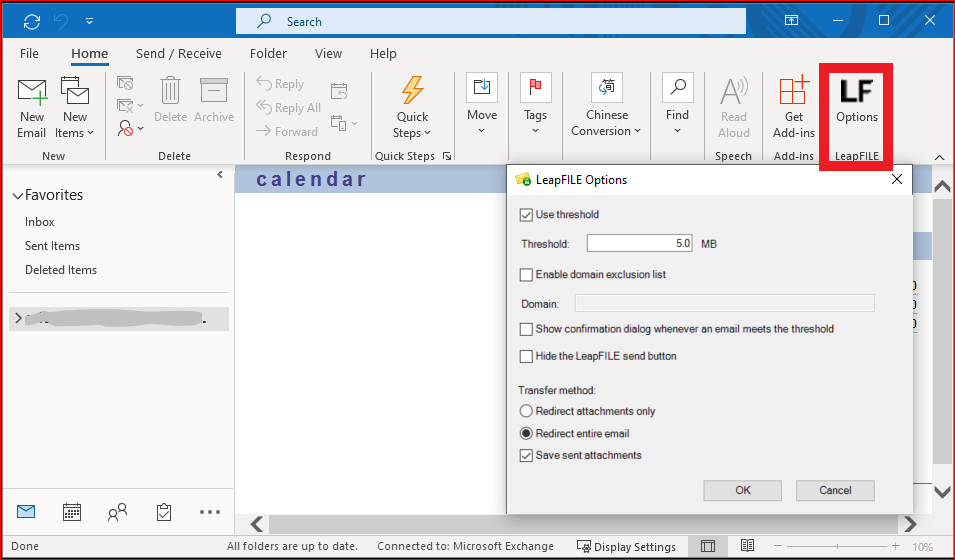
Cause: The size threshold may be set incorrectly or disabled.
Solution:
- In Outlook, click the LF Options button
- Check Use threshold
- Verify the size setting (default: 5 MB)
- Adjust if needed
- Click OK
Installation Issues
Error: .NET Framework Required
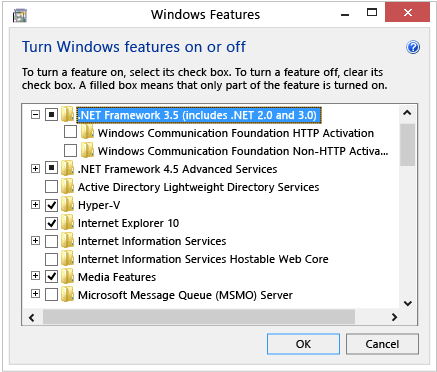
Cause: .NET Framework 3.5 is not installed or enabled.
Solution:
- Press the Windows key
- Type Windows Features
- Press Enter
- Check .NET Framework 3.5 (includes .NET 2.0 and 3.0)
- Click OK
- Reboot if prompted
- Retry the LeapFILE installation
Note
An internet connection is required to download .NET Framework components.
Installation Hangs or Fails
Solutions:
- Close all Office applications before installing
- Run installer as Administrator:
- Right-click the installer
- Select Run as administrator
- Disable antivirus temporarily during installation
- Check disk space - ensure you have at least 500 MB free
- Reboot and try again
Uninstalling LeapFILE
To completely remove the desktop client and Outlook plugin:
Step 1: Uninstall via Control Panel
- Close all Office applications
- Go to Control Panel → Programs and Features (or Settings → Apps)
- Uninstall LeapFILE Desktop Client
- Uninstall LeapFILE 64-bit Plugin (if installed)
Step 2: Delete Program Files
Delete these folders:
- C:\Program Files (x86)\LeapFILE
- C:\Program Files\LeapFILE (if it exists)
- C:\Users\<username>\Documents\Add-in Express
- C:\Users\<username>\AppData\Roaming\LeapFILE
Step 3: Delete Registry Keys (Optional but Recommended)
Registry Editing
Exercise caution when editing the Windows registry. Incorrect changes can cause system issues. See Microsoft's registry guide.
Delete these registry keys:
- HKEY_CURRENT_USER\Software\LeapFILE
- HKEY_LOCAL_MACHINE\Software\LeapFILE
- HKEY_LOCAL_MACHINE\Software\WOW6432node\LeapFILE
Step 4: Reboot
Reboot your computer to complete the uninstallation.
Step 5: Reinstall (if needed)
- Log in to your LeapFILE account
- Download the latest installer
- Follow the installation steps in the Desktop & Outlook guide
Web Client Issues
Upload Fails or Doesn't Start
Solutions:
- Check file size:
- Browser limit: 2-4 GB per file
- Use Enhanced Upload for larger files
- Use Desktop Client for files over 4 GB
- Check browser compatibility:
- Chrome, Firefox, Edge, Safari are recommended
- Internet Explorer is no longer supported
- Disable browser extensions that might interfere
- Clear browser cache and cookies
- Try a different browser
Downloads Launch Files Instead of Saving
Cause: Browser settings automatically open certain file types.
Solution:
Right-click the download link and select: - Save Link As... (Chrome, Firefox) - Save Target As... (Internet Explorer) - Download Linked File (Safari)
Can't Access Repositories or Portals
Cause: Features may be disabled in your account.
Solution:
Contact your account administrator to enable: 1. Go to Account → Account Setup → Feature Enablement 2. Enable Repositories and/or Portals 3. Click Save
When disabled, the Repositories and Portals links don't appear in the top menu.
Performance Optimization
Improve Upload Speeds
- Use the Desktop Client instead of the web interface
- Upload during off-peak hours (early morning or evening)
- Close unnecessary applications using bandwidth
- Connect via Ethernet instead of Wi-Fi if possible
- Disable VPN temporarily if speeds are unusually slow
Improve Download Speeds
- Use a wired connection instead of Wi-Fi
- Download files individually rather than all at once
- Use the Desktop Client for large files
- Check your internet speed at speedtest.net
- Contact your ISP if speeds are consistently slow
Getting Additional Help
If you've tried these solutions and still have issues:
Collect Information
Before contacting support, gather:
- Error messages: Screenshot or exact text
- LeapFILE version: From About dialog or installer filename
- Operating system: Windows version
- Office version: 32-bit or 64-bit (if using Outlook plugin)
- Log files: See FAQ for log file locations
Contact Support
- Email: support@leapfile.com
- Include:
- Description of the issue
- Steps to reproduce
- Error messages
- Log files (if requested)
- System information
Contact Your Administrator
For account-related issues: - User account disabled - Permission issues - Feature enablement - Password resets
Contact your LeapFILE account administrator, not LeapFILE support.
Video Tutorials
Watch troubleshooting videos:
Additional Resources
- Getting Started Guide - Basic usage instructions
- Desktop & Outlook Guide - Installation and configuration
- FAQ - Common questions and answers
- Administration Guide - For administrators