Getting Started with LeapFILE
This guide walks you through the essential features of LeapFILE to help you start sending and receiving files quickly and securely.
Logging In
If you are a new user, you will receive an automated email from LeapFILE with your initial password and a link to your company's secure file exchange website.
First-Time Login
- Go to your company's secure file exchange site (e.g.,
https://yourcompany.leapfile.net) - Click Employee Login (bottom of the page), or use Account Login (top right) if logging in via www.leapfile.com
- Enter your full email address and the provided password
- You will be taken to the Start page
Your Username
Your username is always your email address.
Forgot Your Password?
If you forget your password, you can reset it yourself:
- Click the Forgot my password link on the login page
- Enter your email address - a verification code will be sent to you
- Do not close the web page - check your email for the code
- Copy and paste the verification code into the page and set a new password
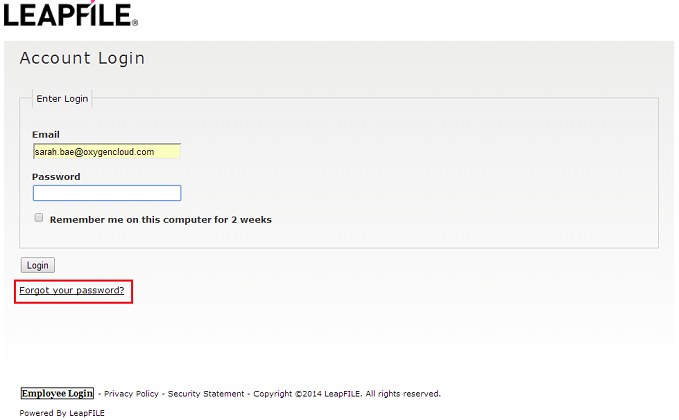
If self-service reset fails, contact your LeapFILE account administrator for assistance.
Sending Files
Basic File Transfer
- Once logged in, click the Transfers link in the menu bar, or click Send files on the Start page
- Enter the email addresses of your recipients (one per line or comma-separated)
- Add a subject line and an optional message
- For added security, you can enable a security question that recipients must answer
- Optionally adjust the expiration date (default is typically 7 days)
- Click Add File(s) to upload individual files, or Add File(s) & Folder(s) to upload multiple files or entire folders
- Click Upload & Send Now to send immediately, or Save as Draft to send later

Draft Transfers
If you save a transfer as a draft, you can edit it later from Transfers → Drafts before sending.
After Sending
After sending, you will receive a confirmation email, and your recipients will get an email with download instructions. You can track the status of your transfer from Transfers → Outgoing Transfers.
Transfer Options
- Expiration Date: Set when files will be automatically deleted (default is 7 days)
- Security Questions: Add an extra layer of security by requiring recipients to answer a question
- Notifications: You'll receive alerts when recipients download your files
File Expiration
Once a transfer expires or is fully downloaded, the files are permanently deleted from LeapFILE servers and cannot be recovered. To store files permanently, use Repositories or Portals.
Receiving Files
When someone sends you files, you will receive an email notification from no_reply@leapfile.com.
For LeapFILE Users (Internal Employees)
You can ignore the notification email and log in directly to your account:
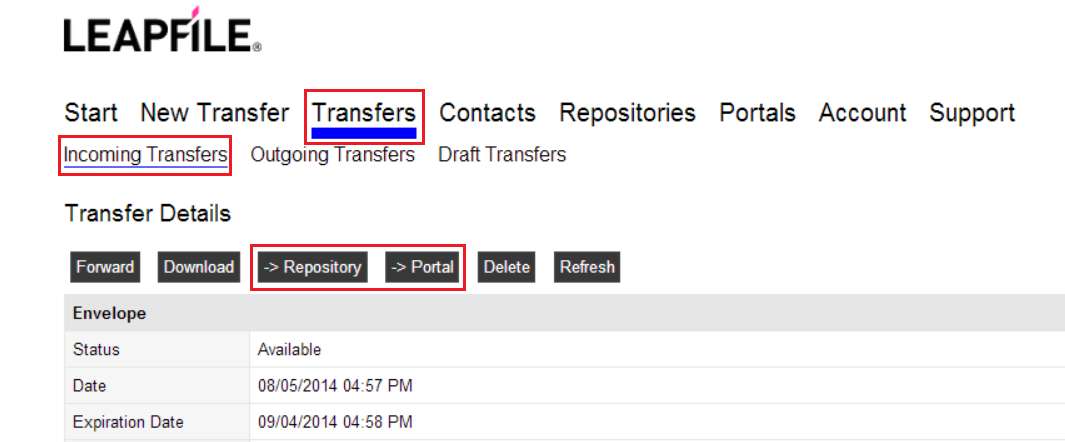
- Navigate to Transfers → Incoming Transfers
- Click details on the transfer you want to view
- Download individual files or all files as a zip
- Optionally copy the files to a Repository or Portal using the → Repository or → Portal buttons
For Non-LeapFILE Users (External Clients)
- Click the secure download link in the email notification
- Authenticate by providing your email address (if required)
- Download the files before the transfer expires
Email Notifications
If you don't see the email notification, check your spam or junk folder. Add no_reply@leapfile.com to your safe sender list to ensure future notifications arrive in your inbox.
How Others Can Send Files to You
Your clients and external contacts can send files to you without needing a LeapFILE account:
- They visit your company's LeapFILE URL (e.g.,
https://yourcompany.leapfile.net) - Click Secure Upload
- Enter your email address as the recipient
- Provide their contact information
- Select files to upload and send
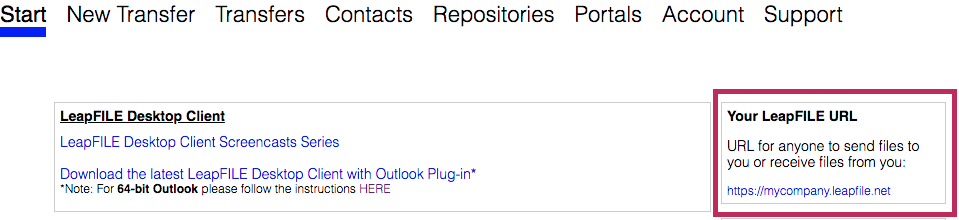
Share Your Company URL
Your company's LeapFILE URL is displayed on your Start page after logging in. Share this clean URL with clients and colleagues. Do not share a URL that includes a long session ID, as those expire.
Canceling a Transfer
If you need to cancel a transfer before recipients have downloaded it:
- Go to Transfers → Outgoing Transfers
- Click details on the transfer you want to cancel
- Click Cancel Delivery
Note
Files that have already been downloaded cannot be recalled. Canceling prevents any remaining recipients from accessing the files.
Managing Contacts
Save frequently used email addresses to your contacts list for faster transfers:
- Go to Transfers in the menu bar
- Click Contacts
- Click the Add Contact button
- Enter the contact's information
- Click Save
When sending files, you can select contacts from your list instead of typing email addresses manually.
Tracking File Downloads
Monitor your transfers in real-time:
- Go to Transfers → Outgoing Transfers
- Click details on any transfer
- View delivery status for each recipient:
- Pending: Email sent, not yet downloaded
- Downloaded: Recipient has downloaded files
- Expired: Transfer has expired
You'll also receive email notifications when recipients download your files (if enabled in your account settings).
Maximum File Sizes
- Web Interface: Most browsers support up to 2-4 GB per file
- Enhanced Upload: Available for larger files (look for the Enhanced Upload button)
- Desktop Client: No file size limit (depending on your account plan) - recommended for large transfers

For Large Files
For files larger than 4 GB or for improved reliability, use the LeapFILE Desktop Client instead of the web interface.
Next Steps
Now that you know the basics, you can:
- Learn about the Desktop Client & Outlook Plugin for enhanced functionality
- Explore Portals & Repositories for permanent file storage
- Check the FAQ for answers to common questions
Video Tutorials
For visual guides on using LeapFILE, visit our video tutorial channel: