Account Setup
Account-wide configuration lives under Account Settings, reachable from the user menu (the avatar circle in the top-right of the page). Account Settings opens with a left sidebar that groups every administrative setting; the items below are organized by topic and reference their location in that sidebar.
Service Plan & Account Information
View details about your account:
- Service Plan: Current plan, signup date, and available features
- Account Information: Account name, administrator contact, and company details
Transfer & Expiration Policies
File Delivery Options
- Set maximum and default expiration periods for file transfers
- Configure how long transfers remain available after sending
- Default is typically 7 days
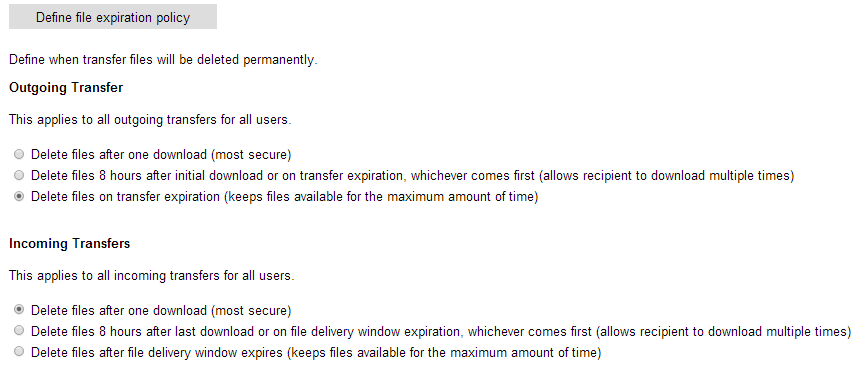
File Expiration Policy
- Define when files are permanently deleted from Leapfile's servers
- Set separate policies for outgoing and incoming transfers
- Choose from: immediately after download, after X days, or never expire
Incomplete Transfer Notifications
- Enable alerts for transfers that haven't been fully downloaded
- Set the number of days before notification is sent
Transfer Archiving
- BCC all transfer notifications to a specified email address
- Useful for compliance and record-keeping
- Archived copies include all transfer details and notifications
Note
File Expiration Policy changes only apply to future transfers, not existing ones.
Security & Authentication
Receiver Authentication Options
Choose which authentication methods senders can offer recipients. Each method can be enabled or disabled independently:
- No Security: Files are accessible via the link alone (least secure)
- Email Address Verification: Recipient enters their email address (the default)
- Email Verification Code: A one-time code is emailed to the recipient
- Security Question: Recipient answers a custom question the sender sets
- Guest Registration (Login Required): Recipient must register or log in as a guest user before downloading
- SMS Verification: A code is texted to the recipient's phone (available when sending from a Portal or Repository)
Default Receiver Authentication
- Set the default authentication method for all new transfers
- Users can override this when sending individual transfers
Upload Security
- Require registered guest accounts to send files to your users
- Prevents spam and unauthorized uploads
- Recommended for organizations with strict security policies
Email Verification Policy
- By default, external senders must verify their email address
- Disable verification to allow unverified uploads
- Recipients will see a warning if sender is unverified
Incoming Transfer Rules
Filter who is allowed to upload to your account by sender email. Configured under Account Settings → Transfer → Incoming Rules.
- Blocking Rules — glob patterns that deny incoming uploads (e.g.,
*@spammer.com,user?@*,*@{gmail,yahoo}.com). Patterns must contain exactly one@. - Exception Rules — glob patterns that override block rules. Use these alongside a broad blocking rule to create a whitelist.
- Rule Testing Tool — preview how any email would be evaluated.
Whitelist-only posture
To accept uploads only from known clients or partners: add Blocking Rule *@*, then add Exception Rules for each trusted domain (e.g., *@clientfirm.com).
Blocked senders see "Uploads from this sender are not allowed" and can request access, which emails the account administrator. Registered guest-account logins bypass these checks.
Standard Security Questions
Create a list of pre-defined security questions for senders to choose from:
- Scroll to Create standard security questions
- Enter your questions (e.g., "What is our project code?", "What city is our office located in?")
- Click Save
Users can then select from these questions when sending files.
Password Policies
The password policy lives at Account Settings → Security → Password and is configurable per account. New accounts default to modern NIST 800-63B-4 guidance: a longer minimum length, a check against breached passwords, and no forced character classes or periodic rotation. The available settings are minimum length (8 to 128 characters), optional uppercase/lowercase/digit/symbol requirements, a breached-password check, password reuse history, expiration, and the self-service reset toggle.
Whitespace is allowed in passwords and counts toward length, so passphrases work well. Existing accounts keep their previous settings until an administrator changes them; the new defaults are not applied retroactively. See the Password Policies guide for defaults, how rules are evaluated, and recommendations.
Self-Service Password Reset
The Allow users to reset their password toggle (Account Settings → Security → Password) controls whether users can reset their own password from the login page:
- Enabled (default): the employee login page shows a Forgot your password? link. The user enters their email, receives a verification code by email, and enters that code to set a new password.
- Disabled: the Forgot your password? link is removed from the login page. If a user reaches the reset flow another way, it returns "Password reset is not enabled. Please contact your administrator." and no email is sent. With self-service off, the only way to reset a user's password is for an administrator to do it from Account Settings → Users → Accounts (see Resetting Passwords).
Sign-In Verification (Two-Factor Authentication)
Leapfile supports app-based two-factor authentication (TOTP — the rotating 6-digit codes from Google Authenticator, Authy, Microsoft Authenticator, 1Password, and similar apps). In the product this is labelled Sign-In Verification.
At Account Settings → Security → Sign-In (full administrators only):
- Sign-in verification — check "Require sign-in verification for all users" to make two-factor authentication mandatory. Unenrolled users are forced through setup at their next login. Switching this on does not break logins for users who have already enrolled; switching it off does not turn it off for anyone who already enabled it.
Sign-In Verification applies to interactive sign-ins (web, and SSO logins routed through Leapfile) and the desktop client. It does not apply to the legacy signed REST API. See User Accounts → Two-Factor Authentication for per-user enrollment status, the Reset action, and what happens when a user is locked out by failed sign-ins.
Session Length and Automatic Sign-Out
Two settings on the same Sign-In Policy page (Account Settings → Security → Sign-In) decide how long a signed-in session lasts. Both apply to the whole account, and both can be changed only by a full account administrator — delegating user administration to someone is not enough to reach them.
Remember this browser
Controls whether users may stay signed in across browser restarts.
- Enabled: the sign-in page offers a Keep me signed in on this browser checkbox, labelled with the number of days you set. The range is 1 to 365 days, and the card offers 30 when you first switch it on.
- Disabled: every sign-in creates a browser-session cookie instead. It ends when the browser closes, and after 24 hours at the latest.
This setting has no effect on two-factor codes. A user signing in while Sign-In Verification is required is asked for a code every time, on every browser.
Automatic sign-out
Signs users out after a period of inactivity, regardless of how long they have been signed in. It is off until an administrator turns it on.
- Tick Sign users out after a period of inactivity and set the window. The window is 5 to 480 minutes (8 hours); the card offers 15 minutes when you first switch it on.
- Idle time is measured from the user's last request to Leapfile, and every request resets the clock. Someone who keeps working is never signed out mid-task.
Automatic sign-out and Remember this browser are mutually exclusive. Turning Automatic sign-out on sets Remember this browser to off for the whole account, and while it stays on, the Remember this browser controls are greyed out and the card reads "Turn off automatic sign-out to change this." Turn Automatic sign-out off to make that setting adjustable again.
Changes take effect at each user's next sign-in
The inactivity window is attached to a session at the moment the session is created. Changing the window, or switching Automatic sign-out on or off, does not affect sessions that are already running. Each user picks up the change the next time they sign in.
Tell your users what to expect before enabling this. There is no warning and no countdown: a user who has been idle past the window is simply returned to the sign-in page by their next click, and anything unsaved on the page is lost.
Outlook add-in sessions are outside this control
Automatic sign-out governs sessions created by signing in to the Leapfile web application, including sign-ins routed through SSO. The Leapfile add-in for Outlook does not use those sessions: it holds its own, established from the Microsoft identity already signed in to Outlook, and re-establishes it silently whenever one is needed. An idle Outlook user is therefore not signed out of the add-in. If you are enabling Automatic sign-out to satisfy a security or compliance policy, describe its scope accordingly — it covers the web application, not the Outlook add-in.
Single Sign-On (SSO)
Leapfile supports OpenID Connect SSO with Azure AD/Entra, Google, Okta, or any OpenID Connect provider, configured at Account Settings → Security → SSO. Users sign in with their existing company credentials and MFA is enforced by your identity provider. See the Single Sign-On (SSO) guide for setup.
Event Monitoring
At Account Settings → Security → Events, you can enable a pull-based REST API that streams your account's activity (transfers sent, files downloaded, and related events) so you can forward it into a SIEM or log pipeline — Microsoft Sentinel, Splunk, Cribl, or anything else that can poll a REST endpoint. Enabling it generates an API key (shown once, prefixed obs_); the page also shows a usage log of API calls. See the Event Monitoring guide for full details.
Inactive Account Policy
- Automatically disable user accounts after a specified period of inactivity
- Reduce security risk from dormant accounts
- Configured under Account Settings → Security → Sign-In (the Inactive account lockout setting); set the number of days of inactivity before accounts are automatically disabled. Hidden on single-user subscriptions.
Content & Feature Management
Secure File Transfer Site URL
- Change your company's Leapfile URL
- Format:
https://yourcompanyname.leapfile.comorhttps://yourcompanyname.leapfile.net - Contact support if you need to update this
Message Footer
- Create a standard HTML footer for all outgoing transfer notifications
- Add disclaimers, contact information, or branding
- Appears at the bottom of every transfer notification email
Feature Enablement
Enable or disable major features for all users:
- Repositories: Toggle internal file storage feature on/off
- Portals: Toggle external guest portal feature on/off
- Desktop Client: Toggle availability of the Leapfile Desktop Client (and its Outlook plugin) for your users
- Transfer API: Toggle the API that lets a user's own systems send transfers programmatically
When disabled, users will not see the Repositories or Portals links in the top menu.
Transfer API
Transfer API turns on the HTTPS API for sending transfers from a script or another system. It is available on plans that include outgoing transfers.
Turning it on is only the first of three steps. Each user who needs it also has to be granted Use the transfer API (see User Accounts) and be allowed to send files; the user then creates their own API key from My Profile → Integrations → API Keys. Turning the account feature off stops every key on the account at once, without revoking the keys, so turning it back on restores them.
See the API documentation for what the API can do and how to hand it to an integrator.
Tip
Use feature enablement to simplify the interface for users who don't need these advanced features.