Billing
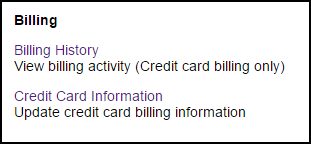
Billing History
Go to Account Settings → Billing → Billing History to view past billing activity:
- Invoice dates and amounts
- Payment method used
- Billing period covered
- Download invoices (PDF)
The list covers one year at a time; use the year selector to reach the previous three.
Available for accounts billed to a credit card.
Download an invoice as a PDF
- Go to Account Settings → Billing → Billing History
- Click details in the Receipt column of the transaction you want. The link appears only on transactions that left a balance owing
- On the Billing Receipt page, click Download invoice (PDF)
The file downloads as leapfile-invoice-<invoice number>.pdf.
Reference number and invoice number are not the same number
The Billing Receipt page on screen shows a Reference #, which identifies the individual transaction. The PDF shows an Invoice Number, which identifies the invoice the transaction was billed under. The two match for a transaction billed on its own, and differ whenever the transaction was part of a larger invoice run. Quote the reference number when you write to us about a specific charge.
Full administrator access required
Billing History, the Billing Receipt page and the invoice PDF all require the Administer account permission. Delegated permissions such as Manage account setup or Manage user accounts do not reach them.
Credit Card Information
Update payment information:
- Go to Account Settings → Billing → Credit Card
- Enter new card details
- Click Save
Administrator Access Required
Only administrators can view and update billing information.
For billing questions, contact: billing@leapfile.com