User Accounts
Manage all users in your Leapfile account.
Adding Users
Add a Single User
- Go to Account Settings → Users → Accounts
- Click the Add User button
- Complete the required fields:
- Name
- Email address (becomes the username)
- Set permissions (see below)
- Leave Send welcome message with initial password selected unless you intend to pass the sign-in details on yourself
- Click Save or Save & Add another
There is no password field on this form. Leapfile generates the user's first password for you, at your account's minimum password length, and the user is required to choose their own password at first sign-in.
Import Multiple Users
- Go to Account Settings → Users → Accounts
- Click the Import Users button
- Download the CSV template
- Fill in user information in the CSV file
- Upload the completed CSV
-
Choose one import mode:
- Add users only — create the new accounts in the file (default)
- Add users & disable the rest — create new accounts and disable any existing users not in the file
- Add users & delete the rest — create new accounts and delete any existing users not in the file
-
Start the import
Leapfile generates a separate first password for every user in the file, at your account's minimum password length. You cannot supply one password to be used for everybody.
On an account whose users sign in with a Leapfile password, the welcome message carrying that password is always sent and cannot be skipped — without it a new user has no way to sign in. On an account that uses single sign-on you can skip the welcome message, because those users sign in through your identity provider instead.
Rows with invalid email addresses, and rows that match an existing user, are skipped. So is any row whose email address cannot receive mail from us, because earlier messages to it bounced or were reported as spam — that way no account is created that can never be given its password. There is no "update existing users" mode, and the three modes are mutually exclusive.
The 'disable/delete the rest' modes affect everyone not in the file
"Add users & disable the rest" and "Add users & delete the rest" act on your entire account, not just the CSV. A short or partial file will disable or delete every user it leaves out. Use "Add users only" unless you intend a full-roster replacement.
Confirming a New User's Email Address
Every new user confirms their email address once before they can see transfers sent to them. This applies however the account was created: added one at a time, imported from a CSV file, or created automatically the first time someone signs in through single sign-on.
The user does not choose how it happens; it depends on how they sign in:
- Signing in with the password from the welcome message confirms the address. There is nothing extra to do.
- Signing in through single sign-on sends a six-digit code to their email address and pauses the sign-in on a confirmation page. They enter the code and the sign-in continues. The Leapfile add-in for Outlook works the same way.
Important Information
The code is asked for once per user, not at every sign-in, and it is not a sign of a problem.
User Permissions
When adding or editing a user, you can grant the following permissions:
- Administer account: Full administrator access to all account settings
- Manage account setup: Ability to modify account configuration
- Send files: Ability to send transfers
- Receive files: Ability to receive transfers
- Create new repositories: Ability to create repositories
- Create new portals: Ability to create portals
- Manage portal guest users: Ability to create and manage guest accounts
- Manage user accounts: Ability to add, edit, disable, and reset passwords for users
- View account reports: Access to reporting features
- Use the transfer API: Ability to create an API key and send transfers programmatically. Off by default, including for users who can already send files, and it has no effect until an administrator turns on the Transfer API account feature. See the API documentation.
Administrator Permissions
Grant administrator access only to trusted users. Administrators can modify all account settings, manage users, and access billing information.
Editing Users
To modify an existing user:
- Go to Account Settings → Users → Accounts
- Click the user's name
- Click Edit
- Update information or permissions
- Click Save
The email address cannot be changed
The Email field on a user's profile is read-only, and no other route changes it: a CSV import matches existing users by their email address and never updates it, single sign-on registers new users but does not rename existing ones, and the user cannot change it from their own profile either.
To move someone to a different address, delete the user and add them again with the new one. Two things do not carry across:
- Transfers stay with the old address. Sent transfers, drafts and pending incoming transfers are bound to the email address they were addressed to, not to the user account, so they do not follow the user to the new address.
- Access has to be granted again. Deleting a user removes their repository and portal authorizations. Add the re-created user back to each repository and portal they need.
The account's designated administrator cannot be deleted
Leapfile refuses to delete the user account named as the billing account's administrator, so that one address cannot be moved by this procedure. Contact support if it has to change.
Enabling/Disabling Users
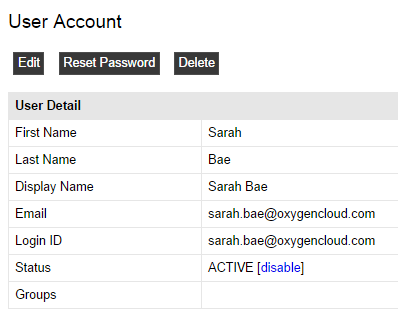
Disable a User
- Go to Account Settings → Users → Accounts
- Click the user's name
- Click the Disable button at the top
Enable a User
- Go to Account Settings → Users → Accounts
- Click the disabled user's name
- Click the Enable button
Bulk Enable/Disable
- Select multiple users using checkboxes
- Click the Enable or Disable button at the top of the list
Info
Disabled users do not count toward your user limit and cannot log in to their accounts.
Resetting Passwords
To reset a user's password:
- Go to Account Settings → Users → Accounts
- Click the user's name
- Click Reset Password
Leapfile then generates a new random temporary password, emails it to the user (subject: "Password Reset"), invalidates that user's existing login sessions, and flags the account so the user must choose a new password at their next login. You need the Administer account or Manage user accounts permission, and the user must belong to your account.
Note
For security reasons, administrators cannot see user passwords. Resetting a password generates a new temporary one that the user must change at first login.
Self-service password reset
Users can also reset their own password from the login page's Forgot your password? link — unless an administrator has turned that off at Account Settings → Security → Password → "Allow users to reset their password". When self-service reset is disabled, the link is hidden and the only way to reset a user's password is the administrator action above. See Self-Service Password Reset.
Two-Factor Authentication (Sign-In Verification)
Leapfile supports app-based two-factor authentication (TOTP codes from Google Authenticator, Authy, Microsoft Authenticator, 1Password, etc.), labelled Sign-In Verification in the product. The account-wide policy (optional vs. required for all users) and the trusted-browser duration live at Account Settings → Security → Sign-In — see Sign-In Verification.
Checking and managing a user's enrollment
There is no single screen that lists every user's two-factor status — it's shown per user. Go to Account Settings → Users → Accounts, click the user's name, and look at the User Sign-In Verification card on the detail page:
- It shows whether that user is currently Enrolled.
- Resetting a user (uncheck Enrolled and save): clears the user's authenticator enrollment, recovery codes, and trusted browsers. They register again with a new device at their next sign-in, and are notified by email. Use this when a user has lost both their phone and their recovery codes.
- Administrators cannot enroll a user — first-time enrollment (scanning the QR code) is always done by the user from their own profile.
Note
The Export Users CSV does not include two-factor status; check the per-user detail page. Only full account administrators can change the account-wide sign-in-verification settings, but Manage user accounts delegates can perform the per-user reset.
Failed Sign-Ins and Account Lockout
Leapfile counts consecutive failed sign-ins per user account, whatever the attempt got wrong — password, verification code or recovery code. The count resets on the next successful sign-in.
- At 10 consecutive failures the account enters a temporary cooldown. The first one is about a minute, and each further failed attempt doubles it, so a user who keeps guessing can reach a wait of several hours. The sign-in page tells the user how long the wait is, the local time they can try again, and how many attempts they have left.
- At 20 consecutive failures the account is disabled. Waiting no longer helps; an administrator has to re-enable it.
An attempt made while a cooldown is running is rejected before the password is even checked, so waiting a cooldown out never costs the user one of their remaining attempts.
To clear a disabled account, open the user's detail page, set the User Sign-In Status card to Enabled and save. That also clears the failure counter, so the user starts from zero.
To end a cooldown early, set that same card to Disabled, save, then set it back to Enabled and save again. Only the move out of the disabled state resets the counter, so the round trip is what clears the wait.
Searching and Filtering Users
Use the search box to find specific users by:
- Name
- Email address
- Status (active/disabled)